

Comprehensive AutoCAD MCP server for Windows. It exposes high-level tools for drawing, editing, querying, annotation, layout, plotting, metadata, 3D solids, and CAD workflow guidance through the Model Context Protocol.
- ✓Open-source license (MIT)
- ✓Actively maintained (<30d)
- ✓Clear description
- ✓Documented (README)
claude mcp add best-cad-mcp -- python -m --upgrade{
"mcpServers": {
"best-cad-mcp": {
"command": "python",
"args": ["-m", "pip"]
}
}
}Resumen de MCP Servers
# best-cad-mcp
<!-- mcp-name: io.github.LokmenoWer/best-cad-mcp -->
[](https://pypi.org/project/best-cad-mcp/)
[](https://pypi.org/project/best-cad-mcp/)

[](https://github.com/LokmenoWer/best-cad-mcp/blob/master/LICENSE)
**A local, handle-first MCP server for agents that work with real AutoCAD drawings.**
Inspect a DWG, reason over structured geometry, plan guarded edits, validate the
result, and export visual evidence without hiding agent state inside the drawing.
[简体中文](https://github.com/LokmenoWer/best-cad-mcp/blob/master/README.zh-CN.md) · [Live demo](#live-autocad-demo) · [Install](#quick-start) · [Workflow](#the-guarded-workflow) · [Tool profiles](#tool-profiles) · [Safety](#safety-model) · [Limitations](#known-limitations)
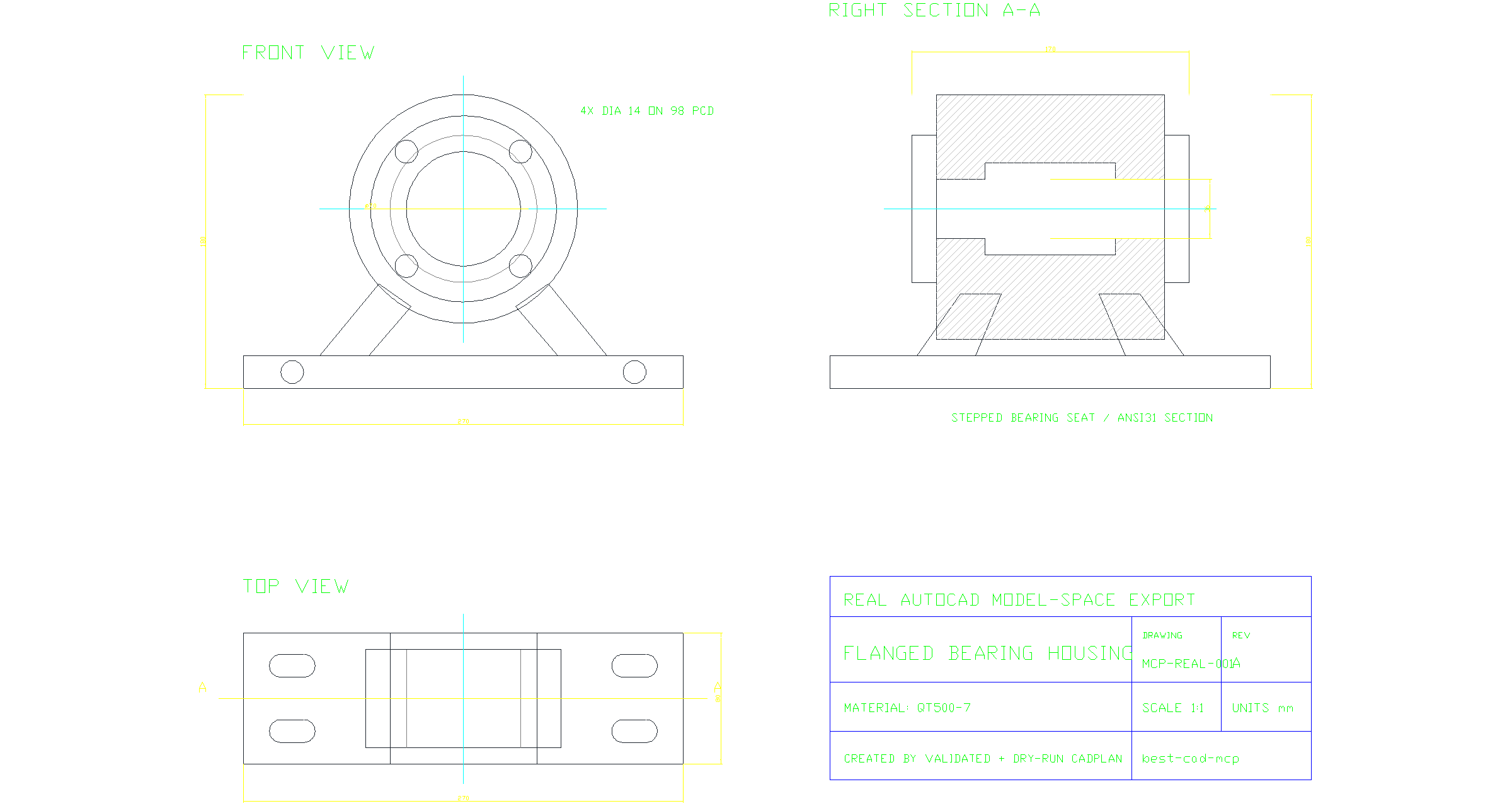
*A real AutoCAD model-space export created by a validated, dry-run CADPlan:
front and top projections, a sectioned side view, centerlines, dimensions,
feature callouts, hatches, and a title block. Download the
[source DWG](https://raw.githubusercontent.com/LokmenoWer/best-cad-mcp/master/docs/artifacts/readme-real-cad/bearing-housing-three-view.dwg)
or inspect the [executed CADPlan](https://github.com/LokmenoWer/best-cad-mcp/blob/master/docs/artifacts/readme-real-cad/cadplan.json).*
> [!IMPORTANT]
> best-cad-mcp is beta software. It is designed for controlled local workflows
> where an operator can review plans and evidence, not unattended changes to
> valuable production drawings.
## Why best-cad-mcp
Most CAD automation stops at drawing primitives. Useful agent workflows also
need to know exactly **what** they are changing, **why** a target was selected,
and **whether** the result is correct.
| Handle-first control | Drawing understanding | Evidence before trust |
| --- | --- | --- |
| Scan real AutoCAD handles, query exact entities, and edit those handles instead of guessing from labels or pixels. | Build CAD-IR, semantic objects and graphs, dimension bindings, constraints, and validation reports in a local workspace. | Validate and dry-run CADPlans, execute explicitly, rescan, and compare structured and visual results. |
The server runs on the same Windows account as AutoCAD and communicates over
MCP stdio. It runs natively on the official MCP Python SDK 2.x, negotiates the
2026-07-28 protocol, and retains legacy client negotiation. AutoCAD remains the
source of truth; SQLite stores model-private context, scan results, and review
artifacts alongside the workspace. AutoCAD-facing tool calls are intentionally
serialized on one event-loop thread to preserve COM apartment safety.
## Live AutoCAD demo
> **Prompt:** Create a production-style A3 landscape bolted flange-coupling
> assembly drawing at true 1:1 size, with a longitudinal half-section, aligned
> end view, exploded schematic, true dimensions, differentiated hatching, an
> eight-item BOM, matching item leaders, technical requirements, and a
> controlled title block.

This is the result of a live AutoCAD session, not a hand-authored SVG. The MCP
client loaded the shipped `precise_draw_from_spec` prompt, then ran 18 bounded
generation phases (162 steps). Its autonomous visual-repair loop used two
layout-repair plans (4 steps); three separately recorded, operator-authorized
presentation-only release-QA plans added 10 steps. Every plan was validated and
dry-run before transactional execution. The final
rescan indexed 91 entities; structured verification detected 129 semantic
objects, processed 7 true dimension annotations, and checked 134 constraints
(127 satisfied, 7 unknown, and none violated). Post-repair geometry validation reported zero
issues. The release plot was independently checked as a one-page landscape A3
PDF.
For reproducibility, the checked-in MCP client builds the deterministic
CADPlans used for this recorded run. The demo shows live execution of the
optimized prompt's guarded workflow, not an unscripted one-shot LLM
generation.
[DXF](examples/live-flange-coupling-demo/flange-coupling-assembly-final.DXF)
· [A3 PDF](examples/live-flange-coupling-demo/flange-coupling-assembly-readme-demo.pdf)
· [Exact prompt](examples/live-flange-coupling-demo/prompt.md)
· [CADPlan bundle](examples/live-flange-coupling-demo/cadplans.json)
· [Verification report](examples/live-flange-coupling-demo/verification-report.json)
· [MCP client](examples/live-flange-coupling-demo/generate_demo.py)
The drawing follows the repository's generic mechanical assembly practice and
is marked `DEMO - NOT FOR MANUFACTURE`; it does not claim formal ISO, GB, ASME,
or other standards compliance.
## Quick start
### Requirements
- Windows
- AutoCAD 2020 or newer recommended, installed and licensed
- AutoCAD and the MCP client running as the same Windows user
- Python 3.11 or newer
- An MCP-compatible local client
### Install the package
```powershell
python -m pip install --upgrade best-cad-mcp
cad-mcp-doctor --check-autocad
```
For rendered overlays and visual-review helpers:
```powershell
python -m pip install --upgrade "best-cad-mcp[visual]"
cad-mcp-doctor --check-autocad --require-visual-export
```
Keep AutoCAD open, then configure your MCP client to launch `cad-mcp`.
### Codex
Codex supports both global `~/.codex/config.toml` and trusted,
project-scoped `.codex/config.toml` files. This minimal installed-package
configuration uses the curated `core` tool profile:
```toml
[mcp_servers.best-cad-mcp]
command = "cad-mcp"
cwd = 'C:\CAD\your-project'
enabled = true
startup_timeout_sec = 30
tool_timeout_sec = 120
default_tools_approval_mode = "writes"
[mcp_servers.best-cad-mcp.env]
CAD_MCP_TOOL_PROFILE = "core"
CAD_MCP_WORKSPACE_ROOT = 'C:\CAD\your-project'
```
Restart Codex after editing the file, then inspect the connected server with
`/mcp`. See the
[official Codex MCP configuration guide](https://developers.openai.com/codex/mcp)
for configuration scopes and current options.
### Claude Code and other JSON-configured clients
```json
{
"mcpServers": {
"best-cad-mcp": {
"command": "cad-mcp",
"env": {
"CAD_MCP_TOOL_PROFILE": "core",
"CAD_MCP_WORKSPACE_ROOT": "C:\\CAD\\your-project"
}
}
}
}
```
Save this as `.mcp.json` in the CAD project root and start the client from that
project. `CAD_MCP_WORKSPACE_ROOT` should point to the CAD project being worked
on, not to this repository. With an installed package, setting both the process
`cwd` and workspace root to the project keeps runtime files together.
<details>
<summary>Install from source</summary>
```powershell
git clone https://github.com/LokmenoWer/best-cad-mcp.git
cd best-cad-mcp
python -m venv .venv
.\.venv\Scripts\Activate.ps1
python -m pip install --upgrade pip
python -m pip install -e ".[visual]"
.\.venv\Scripts\python.exe -m src.doctor --check-autocad
```
For a source checkout, start `python -m src.server` from the repository or
set the MCP server `cwd` to the repository. Keep
`CAD_MCP_WORKSPACE_ROOT` pointed at the separate CAD project you want to
index.
</details>
## The guarded workflow
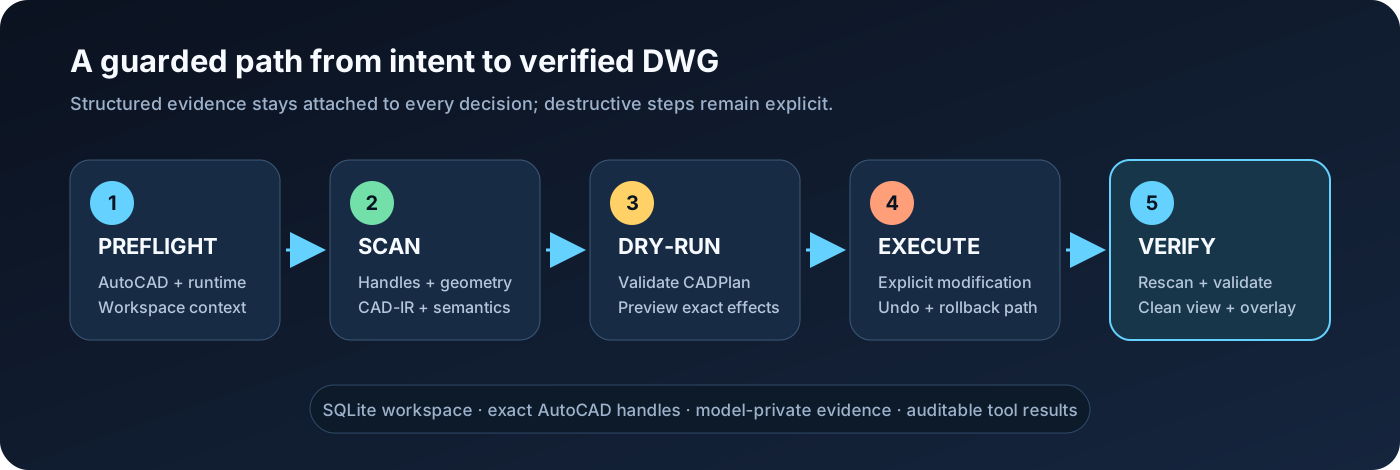
1. **Preflight** — run `check_runtime_environment(check_autocad=true)` or
`cad-mcp-doctor --check-autocad`; stop when the result reports `ok=false`.
2. **Scan** — run `scan_all_entities` before reasoning about an existing DWG.
Use `topology_detail="full"` for primitive grounding or cross-entity profiles.
3. **Understand** — build CAD-IR, summarize the drawing, query semantics, and
confirm important targets with `explain_entity`.
4. **Plan** — express multi-step changes as a CADPlan, then call
`validate_cad_plan` and `dry_run_cad_plan`.
5. **Execute explicitly** — only after authorization and an acceptable dry-run,
call `execute_cad_plan(..., allow_modify=true, transactional=true)`.
6. **Verify** — rescan, run geometric validation, export a clean view and
overlay, and save only when the operator intends to persist the DWG.
For precise edits, prefer handles returned by AutoCAD over names inferred from
screenshots. For visual findings, treat grounding as evidence: confirm the
candidate entity and its geometry before changing it.
## What it can do
| Area | Representative capabilities |
| --- | --- |
| 2D drafting | Lines, polylines, curves, circles, regions, hatches, text, dimensions, leaders, tables, layers, blocks, and attributes |
| Editing | Move, copy, rotate, scale, mirror, offset, trim, extend, fillet, chamfer, arrays, properties, selections, and handle-targeted changes |
| Drawing understanding | SQLite scan, CAD-IR v2, summaries, semantic objects/graphs, constraints, dimension binding, validation, and repair proposals |
| Guarded automation | CADPlan variables, dependencies, captured handles, preconditions, postconditions, dry-runs, transactional execution, undo, and rollback attempts |
| Visual grounding | Clean exports, adaptive numeric overlays, pixel/world mapping, path and polygon grounding, tile crops, and VLM finding reconciliation |
| Image-to-CAD | ImageDrawingSpec tracing, calibration, fidelity checks, staged execution, and visual comparison against the source image |
| Mechanical drawings | Orthographic views, sections, hatches, centerlines, dimensions, BOMs, balloons, layouts, and assembly-oriented prompt/skill assets |
| 3D and output | 3D solids and operations, layouts, plotting, PDF/DXF/DWF/image export, and direct in-result imaLo que la gente pregunta sobre best-cad-mcp
¿Qué es LokmenoWer/best-cad-mcp?
+
LokmenoWer/best-cad-mcp es mcp servers para el ecosistema de Claude AI. Comprehensive AutoCAD MCP server for Windows. It exposes high-level tools for drawing, editing, querying, annotation, layout, plotting, metadata, 3D solids, and CAD workflow guidance through the Model Context Protocol. Tiene 18 estrellas en GitHub y su última actualización registrada es del 2026-09-19.
¿Cómo se instala best-cad-mcp?
+
Puedes instalar best-cad-mcp clonando el repositorio (https://github.com/LokmenoWer/best-cad-mcp) o siguiendo las instrucciones del README en GitHub. ClaudeWave también te ofrece bloques de instalación rápida en esta misma página.
¿Es seguro usar LokmenoWer/best-cad-mcp?
+
Nuestro agente de seguridad ha analizado LokmenoWer/best-cad-mcp y le ha asignado un Trust Score de 87/100 (tier: Trusted). Revisa el desglose completo de comprobaciones superadas y flags en esta página.
¿Quién mantiene LokmenoWer/best-cad-mcp?
+
LokmenoWer/best-cad-mcp es mantenido por LokmenoWer. La última actividad registrada en GitHub es del 2026-09-19, con 0 issues abiertos.
¿Hay alternativas a best-cad-mcp?
+
Sí. En ClaudeWave puedes explorar mcp servers similares en /categories/mcp, ordenados por popularidad o actividad reciente.
Despliega best-cad-mcp en tu cloud
Lleva este repo a producción en minutos. Cada plataforma genera su propio entorno con variables de entorno editables.
¿Mantienes este repo? Añade un badge a tu README
Pega el badge en tu README de GitHub para mostrar que está auditado por ClaudeWave. Cada badge enlaza de vuelta a esta página y muestra el Trust Score actual.
[](https://claudewave.com/repo/lokmenower-best-cad-mcp)<a href="https://claudewave.com/repo/lokmenower-best-cad-mcp"><img src="https://claudewave.com/api/badge/lokmenower-best-cad-mcp" alt="Featured on ClaudeWave: LokmenoWer/best-cad-mcp" width="320" height="64" /></a>Más MCP Servers

Fair-code workflow automation platform with native AI capabilities. Combine visual building with custom code, self-host or cloud, 400+ integrations.

User-friendly AI Interface (Supports Ollama, OpenAI API, ...)

An open-source AI agent that brings the power of Gemini directly into your terminal.

Real-time global intelligence dashboard. AI-powered news aggregation, geopolitical monitoring, and infrastructure tracking in a unified situational awareness interface

🕷️ An adaptive Web Scraping framework that handles everything from a single request to a full-scale crawl! Don't be shy, join here: https://discord.gg/EMgGbDceNQ

The fastest path to AI-powered full stack observability, even for lean teams.