
openloomi-feature-guide
openloomi is a proactive AI workspace that monitors business signals, executes autonomous tasks, and maintains long-term memory across work contexts. Use this skill to answer user questions about openloomi's core features, capabilities like noise filtering and autonomous execution, builtin skills spanning data analysis to web automation, installation instructions, and how to accomplish specific tasks such as creating automations or connecting integrations like Telegram.
git clone --depth 1 https://github.com/melandlabs/openloomi /tmp/openloomi-feature-guide && cp -r /tmp/openloomi-feature-guide/skills/openloomi-feature-guide ~/.claude/skills/openloomi-feature-guideSKILL.md
> **Note:** If OpenLoomi readiness is unknown, use `openloomi-setup` first. If OpenLoomi Desktop is not installed, follow [Getting Started](https://openloomi.ai/docs/getting-started).
# OpenLoomi Product Features
Use this skill when users ask about openloomi features, usage, or capabilities. Provide accurate and easy-to-understand feature introductions and operation guides. The terms used here (Loop, Signal, Decision, Card, ActionKind, Attention Agent, Connector, Memory, Audit Log, Plugin, Agent Runtime, Composio, etc.) are defined in the **Glossary** below — read it first if a user asks anything conceptual.
---
## What is OpenLoomi
OpenLoomi is an **open-source AI coworker, driven by an attention agent**. It connects your authorized work tools and screen content, builds a **holistic context** of your people, projects, and decisions, and tells you what happened, why it matters, what to do next — and surfaces daily summaries — saving your attention for what matters.
Use it standalone, or plug any Agent framework into the same resident desktop: **Claude Code, Codex, OpenCode, Hermes, and OpenClaw** all work. The desktop attention agent (a small fox named **Loomi**) lives on top of your screen and surfaces the day's decisions as gentle bubbles you can approve in one tap.
---
## Glossary
OpenLoomi is best read as a single **chain from input to action**, not as one big chat window. Connectors bring events in, Memory holds context, Loop decides what matters and turns each signal into a Decision card, the Attention Agent (Loomi) shows the card on your desktop, you tap Approve, and an Action Runner executes through a Connector — then the outcome is written back to Memory and recorded in the Audit Log.
This page exists to make that chain legible. It first walks the chain end-to-end, then defines every concept you're likely to meet in other pages, and finishes with a short table of distinctions that get confused in practice. Every cross-reference links to an existing page; nothing here duplicates their full setup or configuration.
### How the concepts fit together
OpenLoomi is one pipeline. The same pieces appear on every page, just framed differently.
Two parallel input paths feed the same context layer. The main one is real-time and runs through Loop; the side one is screen-based and lands in Memory without going through Signals.
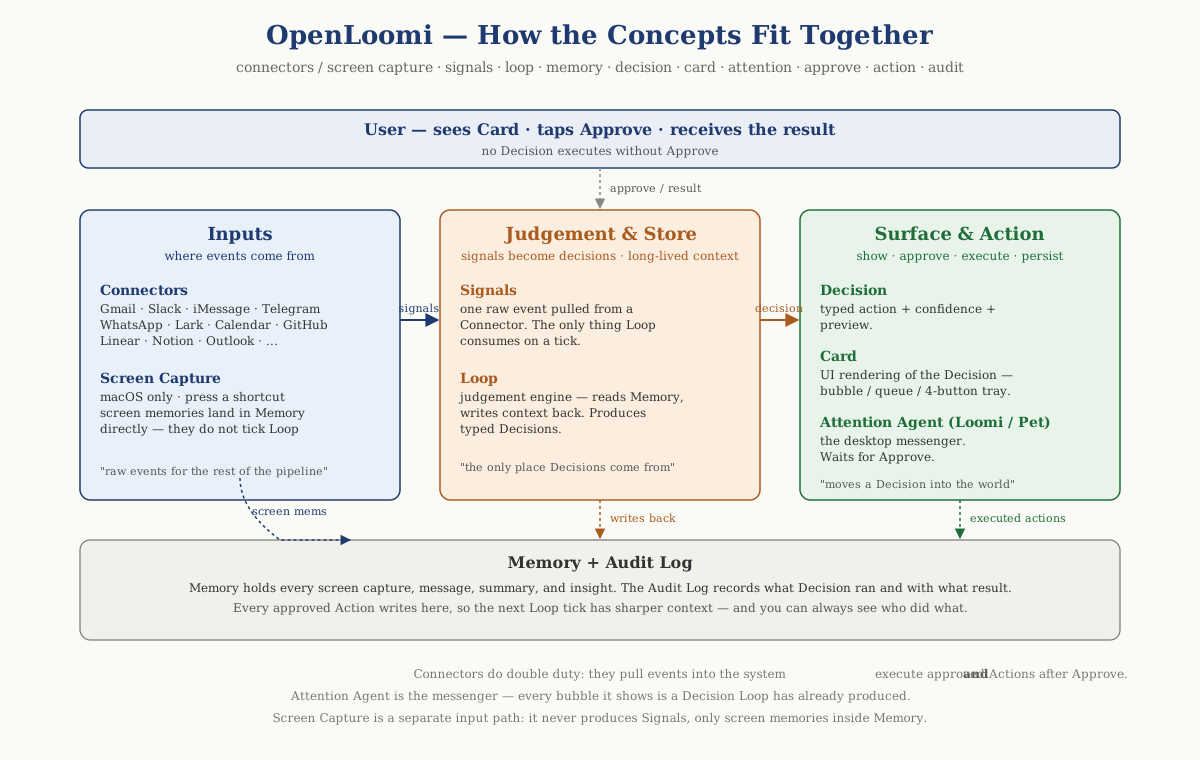
A short reading guide for the figure:
- **Connectors** are the real-time input path: they pull raw events from external platforms and turn them into **Signals**, which **Loop** polls on its tick. Everything that becomes a Decision card comes in this way.
- **Screen Capture** (macOS only) is the side input path: pressing the global capture shortcut summarises the frontmost window and the result is stored directly as a **Memory** record. Screen memories show up alongside messages, summaries, and insights inside Memory; they do **not** flow through Signals and Loop won't tick on them.
- **Memory** is the long-lived context layer: people, projects, prior decisions, summaries, insights, screen memories, and Knowledge Base chunks. **Loop** reads the relevant slice before it judges; **Chat** reads Memory through retriever skills; the result of every approved action is written back into Memory.
- **Loop** is the only thing that produces **Decisions**. A Decision is the typed judgement ("this email needs a reply", "this PR needs a review"), and a **Card** is how that judgement looks in the UI.
- The **Attention Agent** (also called **Loomi**, the **pet**, or the **fox**) is the messenger. It surfaces cards on the desktop. It does no judging of its own.
- You always tap **Approve** before anything runs. After approval, an **Action Runner** calls a **Connector** to actually send mail / post the comment / update the ticket.
- The result lands back in **Memory** (so the next Loop tick has sharper context) and in the **Audit Log** (so you can see who did what and when).
#### Worked example — "An email needs a reply"
> 9:12 AM. Sarah writes: "Hi — I tweaked tomorrow's Q2 review agenda, can you take a look? Also, I'd like to move our Wednesday 1:1 to Thursday same time — works for you?"
Step by step through the chain:
| Step | Where it happens | What is produced |
| ------------- | -------------------------------------------------------------- | ------------------------------------------------------------------------------ |
| 1. Ingest | Gmail **Connector** | A raw **Signal** — a new email event |
| 2. Enrich | **Memory** + **Screen Capture** (if you had related tabs open) | A context slice: who Sarah is, the Q2 project note, last thread summary |
| 3. Judge | **Loop** tick | A typed **Decision** — `email_reply`, confidence `0.85` |
| 4. Surface | **Attention Agent** bubble, main-window queue, pet card | A **Card** with subject, sender, draft preview, the four-button tray |
| 5. Approve | You tap **Approve** | The **Action Runner** for `email_reply` is invoked |
| 6. Execute | Gmail **Connector** (send) | The reply is sent |
| 7. Write back | **Memory** + **Audit Log**Browser automation CLI for AI agents. Use when the user needs to interact with websites, including navigating pages, filling forms, clicking buttons, taking screenshots, extracting data, testing web apps, or automating any browser task. Triggers include requests to "open a website", "fill out a form", "click a button", "take a screenshot", "scrape data from a page", "test this web app", "login to a site", "automate browser actions", or any task requiring programmatic web interaction.
Use 1000+ external apps via Composio - either directly through the CLI or by building AI agents and apps with the SDK
Walk the user through installing the optional composio skill and turning on screen memory
Persist learning across turns by actively maintaining MENTAL_MODEL.md in the workspace. Use for iterative coding, debugging, benchmarking, or any feedback-driven task; read and update the file with actual filesystem writes before every response, never just hidden/internal memory.
Create an end-to-end Continual Learning Bench task. Use when adding a new src/tasks/<name> benchmark task, including design interview, concrete Jinja prompt templates, JSON action contracts, observation templates, debug schedule, behavioral E2E tests, validation, smoke/debug runs with icl and icl_notepad, and README documentation.
Drive a native macOS app via the cua-driver CLI (default) or MCP server — snapshot its AX tree, click/type/scroll by element_index, verify via re-snapshot. Use when the user asks you to operate, drive, automate, or perform a GUI task in a real macOS application on the host (e.g. "open a file in TextEdit", "navigate to /Applications in Finder", "click the Save button in Numbers").
High-performance data analysis using Polars - load, transform, aggregate, visualize and export tabular data. Use for CSV/JSON/Parquet processing, statistical analysis, time series, and creating charts.
Use this skill whenever the user wants to create, read, edit, or manipulate Word documents (.docx files). Triggers include: any mention of "Word doc", "word document", ".docx", or requests to produce professional documents with formatting like tables of contents, headings, page numbers, or letterheads. Also use when extracting or reorganizing content from .docx files, inserting or replacing images in documents, performing find-and-replace in Word files, working with tracked changes or comments, or converting content into a polished Word document. If the user asks for a "report", "memo", "letter", "template", or similar deliverable as a Word or .docx file, use this skill. Do NOT use for PDFs, spreadsheets, Google Docs, or general coding tasks unrelated to document generation.