

Turn your Android phone into a camera & sensor source for PC AI agents — a local MCP bridge for Claude, Codex & more. No cloud, no ADB.
claude mcp add onsense -- uvx onsense{
"mcpServers": {
"onsense": {
"command": "uvx",
"args": ["onsense"]
}
}
}Resumen de MCP Servers
# onsense — Phone Camera, Sensors & Files for PC AI Agents
<!-- mcp-name: io.github.hufirst/onsense -->
**Don't describe it. Let your AI see it.** `onsense` is the PC-side MCP broker for the [onSense](https://play.google.com/store/apps/details?id=com.shdev.onsense) Android app: run `uvx onsense pair` on your PC, and **any MCP-capable AI** — Claude Code, Claude Desktop, Codex, or your own agent — can see through your phone's camera, read its sensors, and move files & clipboard both ways. **No cloud relay. No ADB.**
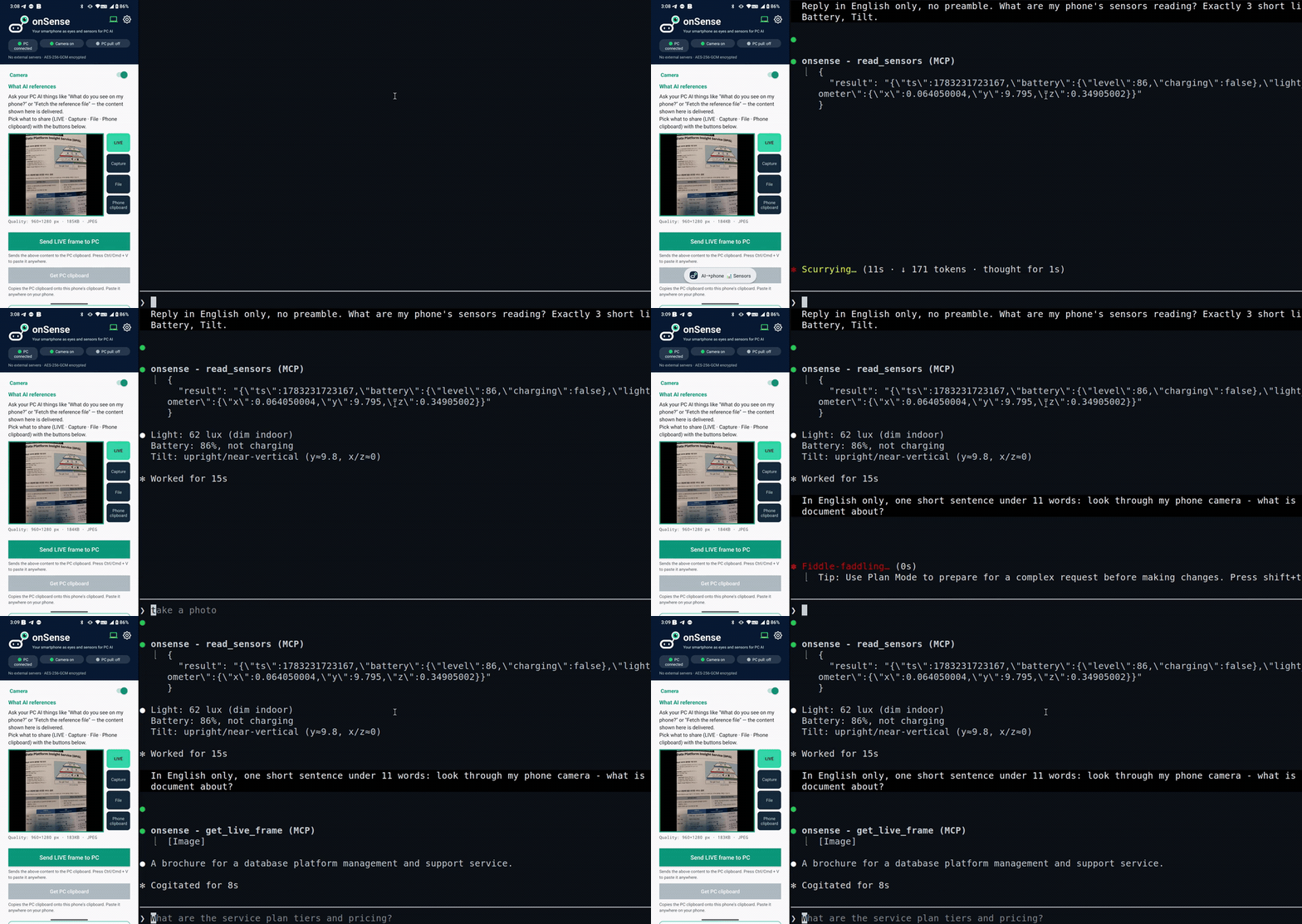
> *Claude Code, running on the PC, reads the phone's sensors and looks through its camera to answer — live, over local Wi-Fi.*
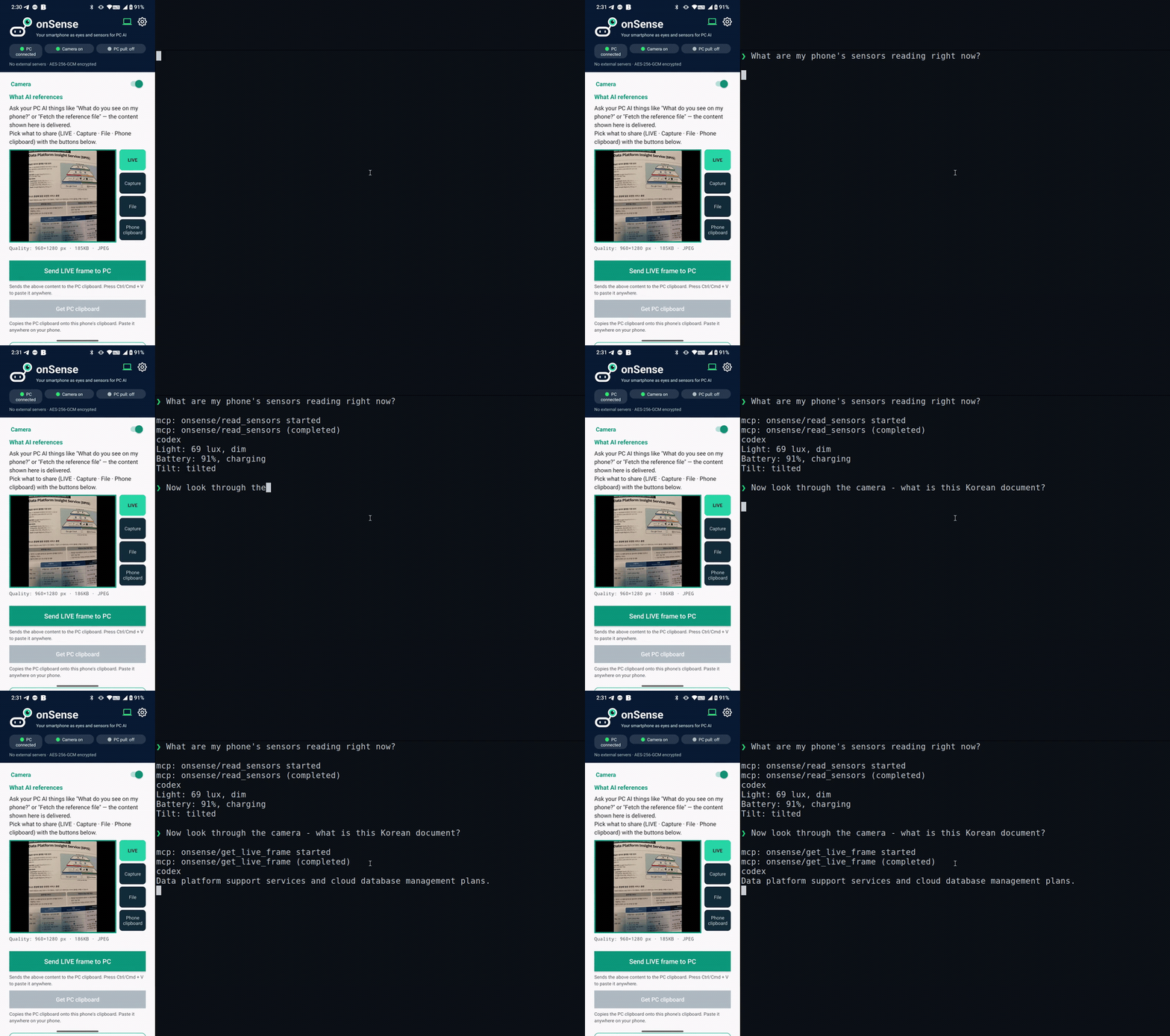
> *…and the same with Codex. onSense is a standard MCP server, so any MCP client works.*
---
## Architecture
```text
Android phone (onSense app) PC (this package) AI client
HTTP provider :8080 ←→ stdio MCP broker Claude / Codex / …
camera frames, photos, onsense serve natural-language or
sensors, QR pairing onsense clip :8770 /onsense tool calls
```
- The **phone** runs an HTTP provider on port 8080. It exposes camera frames, recent photos, and sensor readings, all gated by a pairing token.
- The **PC package** (`onsense`) is a stdio MCP broker. It translates MCP tool calls from your AI client into HTTP requests to the phone.
- Discovery uses mDNS (`_onsense._tcp.local.`). If the phone's IP changes, the broker rediscovers it automatically — no manual reconfiguration needed.
- An optional **clip bridge** daemon on port 8770 lets the phone push camera frames, files, and clipboard content to the PC (and, if enabled, lets the phone pull from the PC clipboard).
---
## Requirements
- [uv](https://docs.astral.sh/uv/) (provides `uvx`; downloads a managed Python automatically — no separate Python install needed)
- The onSense Android app installed on a phone on the **same local Wi-Fi network** as your PC
- An MCP-compatible AI client such as [Claude Code](https://claude.ai/code), Codex, or any stdio MCP client
---
## Quick Start
### 0. Fresh PC without uv? Use the app's setup helper (recommended)
On a clean PC, `uvx` doesn't exist yet and the command below will fail with *"'uvx' is not recognized"*. The easiest fix: install the onSense app first, tap **"Start PC setup helper"**, and open the shown address on your PC. It gives you a one-line command that installs uv, pairs, and registers the MCP server in one go — and because the PC connects *out* to the phone, it also sidesteps the Windows firewall entirely.
Prefer installing uv yourself? One line:
```powershell
# Windows (PowerShell)
irm https://astral.sh/uv/install.ps1 | iex
$env:Path = "$env:USERPROFILE\.local\bin;$env:Path" # make uvx visible in this same shell
```
```bash
# macOS / Linux
curl -LsSf https://astral.sh/uv/install.sh | sh
export PATH="$HOME/.local/bin:$PATH"
```
### 1. Pair your phone
Run this once. The PC prints a QR code; scan it from the onSense app ("Scan PC QR"). The phone pushes its address and token to the PC, which registers the MCP server automatically.
```bash
uvx onsense pair
```
After pairing, restart your AI client once so it picks up the new `onsense` MCP server.
### 2. Use it
Ask your AI client naturally:
> "Take a photo of what's in front of my phone."
> "What are the current sensor readings?"
> "Show me the last 5 photos on my phone."
The MCP tools are called automatically. In Claude Code you can also use the bundled **`/onsense`** slash command (installed during pairing).
### 3. Diagnose problems
```bash
uvx onsense doctor # checks Python, uv, MCP, Claude registration, mDNS, phone reachability
uvx onsense doctor --base http://192.168.1.5:8080 --token YOUR_PAIRING_TOKEN
```
### Windows: QR scan times out?
The #1 cause is the Windows firewall dropping the phone's inbound connection:
- If your Wi-Fi network profile is **Public**, inbound traffic is blocked hard. Switch it to **Private** (Settings → Network → your Wi-Fi → Network profile), or just use the app's **PC setup helper**, which needs no inbound port at all.
- On a Private network, add a durable allow rule once (run as administrator):
```powershell
uvx onsense pair --fix-firewall
```
The first-run firewall popup is *program-path-scoped* and uvx's ephemeral paths silently invalidate it — the port-scoped rule above (TCP 8765–8774, Private) is what actually sticks.
- If port 8765 is taken, `pair` automatically falls back to the next free port (up to 8774) and the QR reflects the real port — no action needed.
---
## Subcommands
| Command | What it does |
| --- | --- |
| `uvx onsense pair` | Display a QR code on the PC; phone scans it and pushes `{base, token}`; registers MCP automatically |
| `uvx onsense pair "onsense://pair?base=...&token=..."` | Parse a pairing URI directly (phone-displayed QR → manual copy) |
| `uvx onsense pair --img screenshot.png` | Decode a pairing QR from a screenshot file (requires opencv) |
| `uvx onsense serve` | Run the MCP server (stdio). Also starts the clip daemon automatically unless `--no-clip` is passed |
| `uvx onsense serve --no-clip` | Run the MCP server only, without starting the clip daemon |
| `uvx onsense clip` | Run the clip bridge daemon standalone (port 8770) |
| `uvx onsense clip --allow-pull` | Enable phone→pull: phone can GET /clip to retrieve the PC clipboard |
| `uvx onsense clip --set-clipboard` | Auto-inject received content into the PC OS clipboard (off by default) |
| `uvx onsense pair --fix-firewall` | (Windows, admin) Add the durable port-scoped firewall rule, then pair as usual |
| `uvx onsense doctor` | Diagnose installation, connectivity, and phone reachability |
| `uvx onsense stats` | Show local-only activation stats (`--json`, `--reset`). Nothing is uploaded automatically |
---
## Other MCP clients (Claude Desktop, Codex, …)
`uvx onsense pair` auto-registers the server with **Claude Code** (via `claude mcp add`) — this one-line auto-setup is Claude Code-specific. The MCP server itself is standard stdio MCP, so **any MCP-compatible client works** once you add it manually. Run `uvx onsense pair` once first: it saves your phone's address and token to `~/.onsense/pair.json`, which the server reads at request time — so you don't put the token in each client's config, and the phone's IP is auto-tracked via mDNS.
**Claude Desktop** — add to `claude_desktop_config.json`:
```json
{ "mcpServers": { "onsense": { "command": "uvx", "args": ["onsense", "serve"] } } }
```
**Codex** — register via the CLI (verified with Codex CLI 0.142.5):
```bash
codex mcp add onsense -- uvx onsense serve
```
> **Codex sandbox note:** Codex's default sandbox blocks network access, so the MCP server can't reach your phone and tool calls fail silently. Run Codex with network access enabled (e.g. `--sandbox danger-full-access`, or a sandbox policy that permits network) so onsense can talk to the phone on your LAN.
or add to `~/.codex/config.toml`:
```toml
[mcp_servers.onsense]
command = "uvx"
args = ["onsense", "serve"]
```
Restart the client once after adding the server. Any other stdio MCP client works the same way — point it at `uvx onsense serve`.
---
## MCP Tools
These tools are exposed to your AI client after pairing:
| Tool | Description |
| --- | --- |
| `get_live_frame()` | Capture the current camera frame from the phone (returns JPEG image) |
| `read_sensors()` | Return phone sensor readings as JSON: battery level/charging state, ambient light (lux), accelerometer (x/y/z) |
| `recent_photos(limit=10)` | List recent photos on the phone: id, name, date_added, size, width, height |
| `get_photo(id, max_width=1024)` | Fetch a specific photo by id (downscaled to max_width); use ids from `recent_photos` |
| `get_reference()` | Fetch whatever the phone has designated as its **reference source** — a live camera frame, a captured photo, or an arbitrary file (incl. non-images) — saved to disk with path + metadata. The core of the file/capture bridge |
| `get_cam_fps()` | Read the phone's current camera FPS setting (15 = high-performance, 2 = balanced, 0 = on-demand) |
| `set_cam_fps(fps)` | Set the phone's camera FPS: `15` (high-performance), `2` (balanced, recommended), or `0` (power-saving / on-demand) |
If the phone's IP changes, the broker retries using mDNS autodiscovery before surfacing an error.
---
## Clip Bridge (Phone ↔ PC File & Clipboard)
`onsense serve` automatically starts a clip daemon on **port 8770**. You can also run it standalone with `onsense clip`.
### Phone → PC push (POST /clip)
The onSense Android app can push content to the PC:
- **Images** are saved to disk as `latest.jpg` (in `ONSENSE_CLIP_DIR`, default `<tempdir>/onsense/`).
- **Text files** are saved to disk.
- **Other files** (video, PDF, etc.) are saved to disk by filename.
- If `--set-clipboard` is active, images and text are also injected into the PC OS clipboard so you can paste with Ctrl+V immediately.
By default, `--set-clipboard` is **off** — files are saved to disk but the clipboard is not touched.
### PC → Phone pull (GET /clip)
Off by default. Enable with:
```bash
uvx onsense clip --allow-pull
```
When enabled, the phone can GET /clip to retrieve the current PC clipboard content (copied files first, then images, then text). Returns 204 if the clipboard is empty.
### Ports and environment variables
| Variable | Default | Purpose |
| --- | --- | --- |
| `PHONE_BASE` | (from pairing) | Phone HTTP base URL, e.g. `http://192.168.1.5:8080` |
| `PHONE_TOKEN` | (from pairing) | Pairing auth token |
| `ONSENSE_CLIP_DIR` | `<tempdir>/onsense` | Directory where pushed files are savLo que la gente pregunta sobre onsense
¿Qué es hufirst/onsense?
+
hufirst/onsense es mcp servers para el ecosistema de Claude AI. Turn your Android phone into a camera & sensor source for PC AI agents — a local MCP bridge for Claude, Codex & more. No cloud, no ADB. Tiene 0 estrellas en GitHub y se actualizó por última vez today.
¿Cómo se instala onsense?
+
Puedes instalar onsense clonando el repositorio (https://github.com/hufirst/onsense) o siguiendo las instrucciones del README en GitHub. ClaudeWave también te ofrece bloques de instalación rápida en esta misma página.
¿Es seguro usar hufirst/onsense?
+
hufirst/onsense aún no ha sido auditado por nuestro agente de seguridad. Revisa el repositorio original en GitHub antes de usarlo en producción.
¿Quién mantiene hufirst/onsense?
+
hufirst/onsense es mantenido por hufirst. La última actividad registrada en GitHub es de today, con 0 issues abiertos.
¿Hay alternativas a onsense?
+
Sí. En ClaudeWave puedes explorar mcp servers similares en /categories/mcp, ordenados por popularidad o actividad reciente.
Despliega onsense en tu cloud
Lleva este repo a producción en minutos. Cada plataforma genera su propio entorno con variables de entorno editables.
¿Mantienes este repo? Añade un badge a tu README
Pega el badge en tu README de GitHub para mostrar que está auditado por ClaudeWave. Cada badge enlaza de vuelta a esta página y muestra el Trust Score actual.
[](https://claudewave.com/repo/hufirst-onsense)<a href="https://claudewave.com/repo/hufirst-onsense"><img src="https://claudewave.com/api/badge/hufirst-onsense" alt="Featured on ClaudeWave: hufirst/onsense" width="320" height="64" /></a>Más MCP Servers

Fair-code workflow automation platform with native AI capabilities. Combine visual building with custom code, self-host or cloud, 400+ integrations.

User-friendly AI Interface (Supports Ollama, OpenAI API, ...)

An open-source AI agent that brings the power of Gemini directly into your terminal.

The fastest path to AI-powered full stack observability, even for lean teams.

🕷️ An adaptive Web Scraping framework that handles everything from a single request to a full-scale crawl!

Real-time global intelligence dashboard. AI-powered news aggregation, geopolitical monitoring, and infrastructure tracking in a unified situational awareness interface