

Turn your Android phone into a camera & sensor source for PC AI agents — a local MCP bridge for Claude, Codex & more. No cloud, no ADB.
claude mcp add onsense -- uvx onsense{
"mcpServers": {
"onsense": {
"command": "uvx",
"args": ["onsense"]
}
}
}MCP Servers overview
# onsense — Phone Camera, Sensors & Files for PC AI Agents
<!-- mcp-name: io.github.hufirst/onsense -->
**Don't describe it. Let your AI see it.** `onsense` is the PC-side MCP broker for the [onSense](https://play.google.com/store/apps/details?id=com.shdev.onsense) Android app: run `uvx onsense pair` on your PC, and **any MCP-capable AI** — Claude Code, Claude Desktop, Codex, or your own agent — can see through your phone's camera, read its sensors, and move files & clipboard both ways. **No cloud relay. No ADB.**
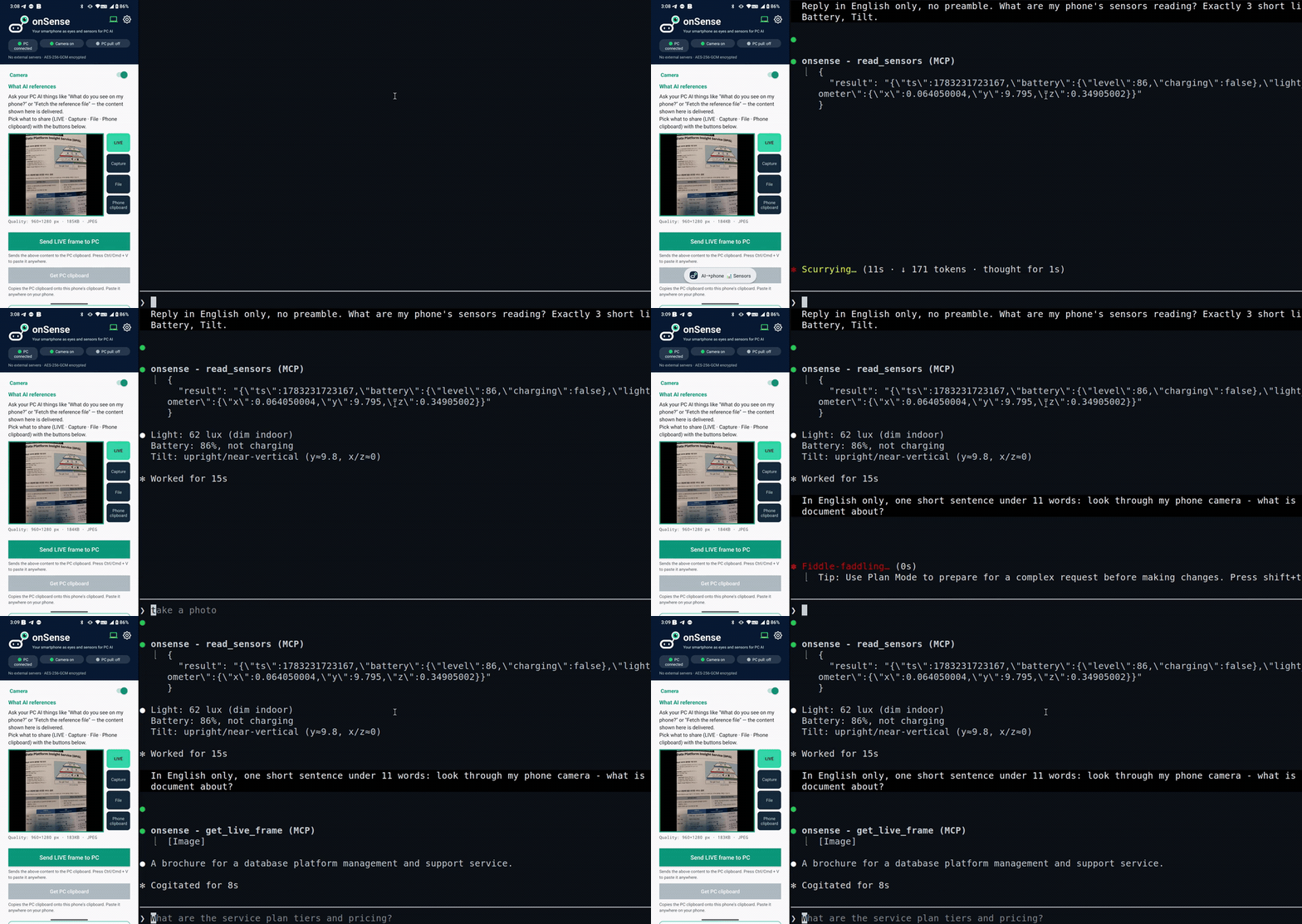
> *Claude Code, running on the PC, reads the phone's sensors and looks through its camera to answer — live, over local Wi-Fi.*
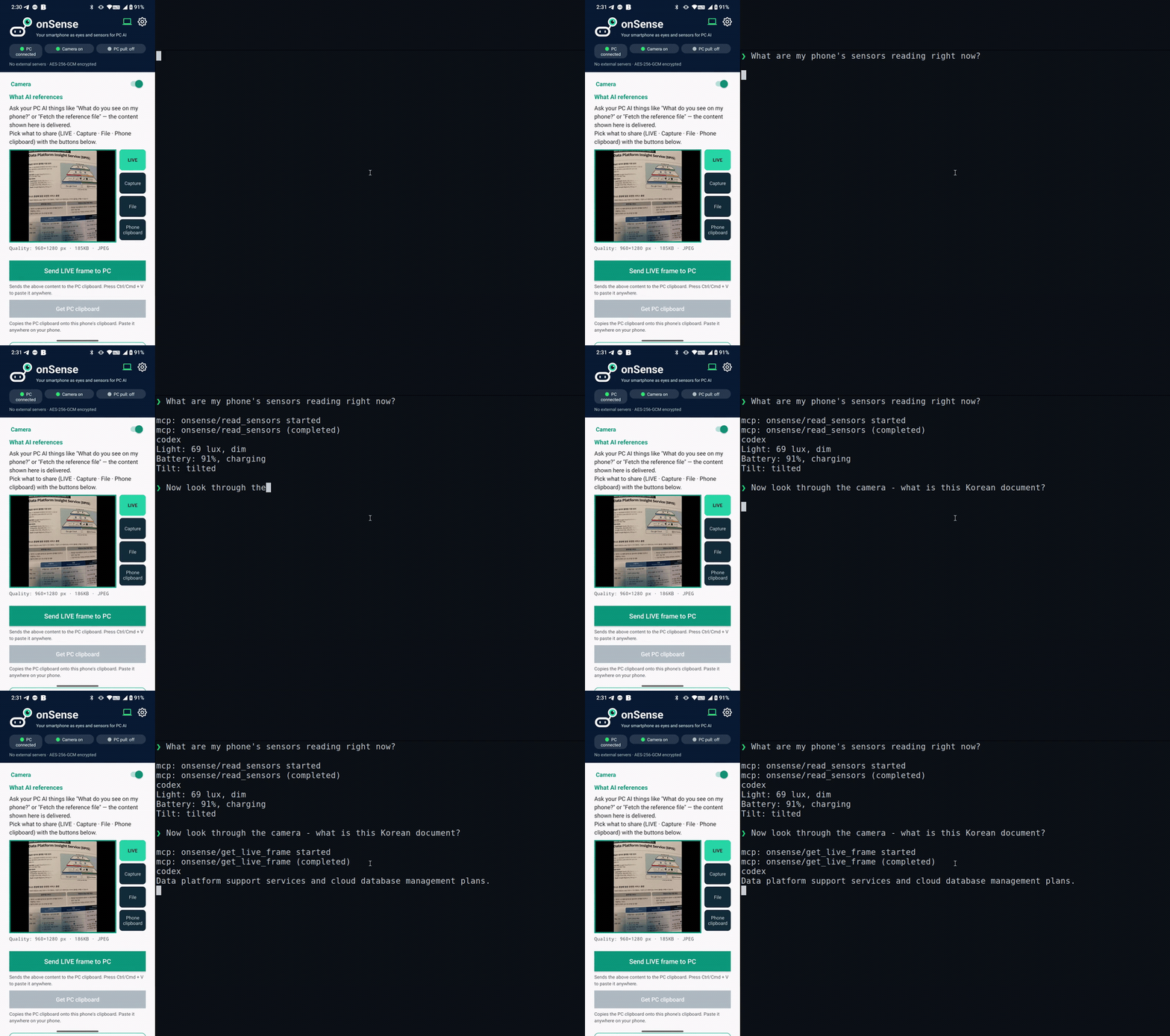
> *…and the same with Codex. onSense is a standard MCP server, so any MCP client works.*
---
## Architecture
```text
Android phone (onSense app) PC (this package) AI client
HTTP provider :8080 ←→ stdio MCP broker Claude / Codex / …
camera frames, photos, onsense serve natural-language or
sensors, QR pairing onsense clip :8770 /onsense tool calls
```
- The **phone** runs an HTTP provider on port 8080. It exposes camera frames, recent photos, and sensor readings, all gated by a pairing token.
- The **PC package** (`onsense`) is a stdio MCP broker. It translates MCP tool calls from your AI client into HTTP requests to the phone.
- Discovery uses mDNS (`_onsense._tcp.local.`). If the phone's IP changes, the broker rediscovers it automatically — no manual reconfiguration needed.
- An optional **clip bridge** daemon on port 8770 lets the phone push camera frames, files, and clipboard content to the PC (and, if enabled, lets the phone pull from the PC clipboard).
---
## Requirements
- [uv](https://docs.astral.sh/uv/) (provides `uvx`; downloads a managed Python automatically — no separate Python install needed)
- The onSense Android app installed on a phone on the **same local Wi-Fi network** as your PC
- An MCP-compatible AI client such as [Claude Code](https://claude.ai/code), Codex, or any stdio MCP client
---
## Quick Start
### 0. Fresh PC without uv? Use the app's setup helper (recommended)
On a clean PC, `uvx` doesn't exist yet and the command below will fail with *"'uvx' is not recognized"*. The easiest fix: install the onSense app first, tap **"Start PC setup helper"**, and open the shown address on your PC. It gives you a one-line command that installs uv, pairs, and registers the MCP server in one go — and because the PC connects *out* to the phone, it also sidesteps the Windows firewall entirely.
Prefer installing uv yourself? One line:
```powershell
# Windows (PowerShell)
irm https://astral.sh/uv/install.ps1 | iex
$env:Path = "$env:USERPROFILE\.local\bin;$env:Path" # make uvx visible in this same shell
```
```bash
# macOS / Linux
curl -LsSf https://astral.sh/uv/install.sh | sh
export PATH="$HOME/.local/bin:$PATH"
```
### 1. Pair your phone
Run this once. The PC prints a QR code; scan it from the onSense app ("Scan PC QR"). The phone pushes its address and token to the PC, which registers the MCP server automatically.
```bash
uvx onsense pair
```
After pairing, restart your AI client once so it picks up the new `onsense` MCP server.
### 2. Use it
Ask your AI client naturally:
> "Take a photo of what's in front of my phone."
> "What are the current sensor readings?"
> "Show me the last 5 photos on my phone."
The MCP tools are called automatically. In Claude Code you can also use the bundled **`/onsense`** slash command (installed during pairing).
### 3. Diagnose problems
```bash
uvx onsense doctor # checks Python, uv, MCP, Claude registration, mDNS, phone reachability
uvx onsense doctor --base http://192.168.1.5:8080 --token YOUR_PAIRING_TOKEN
```
### Windows: QR scan times out?
The #1 cause is the Windows firewall dropping the phone's inbound connection:
- If your Wi-Fi network profile is **Public**, inbound traffic is blocked hard. Switch it to **Private** (Settings → Network → your Wi-Fi → Network profile), or just use the app's **PC setup helper**, which needs no inbound port at all.
- On a Private network, add a durable allow rule once (run as administrator):
```powershell
uvx onsense pair --fix-firewall
```
The first-run firewall popup is *program-path-scoped* and uvx's ephemeral paths silently invalidate it — the port-scoped rule above (TCP 8765–8774, Private) is what actually sticks.
- If port 8765 is taken, `pair` automatically falls back to the next free port (up to 8774) and the QR reflects the real port — no action needed.
---
## Subcommands
| Command | What it does |
| --- | --- |
| `uvx onsense pair` | Display a QR code on the PC; phone scans it and pushes `{base, token}`; registers MCP automatically |
| `uvx onsense pair "onsense://pair?base=...&token=..."` | Parse a pairing URI directly (phone-displayed QR → manual copy) |
| `uvx onsense pair --img screenshot.png` | Decode a pairing QR from a screenshot file (requires opencv) |
| `uvx onsense serve` | Run the MCP server (stdio). Also starts the clip daemon automatically unless `--no-clip` is passed |
| `uvx onsense serve --no-clip` | Run the MCP server only, without starting the clip daemon |
| `uvx onsense clip` | Run the clip bridge daemon standalone (port 8770) |
| `uvx onsense clip --allow-pull` | Enable phone→pull: phone can GET /clip to retrieve the PC clipboard |
| `uvx onsense clip --set-clipboard` | Auto-inject received content into the PC OS clipboard (off by default) |
| `uvx onsense pair --fix-firewall` | (Windows, admin) Add the durable port-scoped firewall rule, then pair as usual |
| `uvx onsense doctor` | Diagnose installation, connectivity, and phone reachability |
| `uvx onsense stats` | Show local-only activation stats (`--json`, `--reset`). Nothing is uploaded automatically |
---
## Other MCP clients (Claude Desktop, Codex, …)
`uvx onsense pair` auto-registers the server with **Claude Code** (via `claude mcp add`) — this one-line auto-setup is Claude Code-specific. The MCP server itself is standard stdio MCP, so **any MCP-compatible client works** once you add it manually. Run `uvx onsense pair` once first: it saves your phone's address and token to `~/.onsense/pair.json`, which the server reads at request time — so you don't put the token in each client's config, and the phone's IP is auto-tracked via mDNS.
**Claude Desktop** — add to `claude_desktop_config.json`:
```json
{ "mcpServers": { "onsense": { "command": "uvx", "args": ["onsense", "serve"] } } }
```
**Codex** — register via the CLI (verified with Codex CLI 0.142.5):
```bash
codex mcp add onsense -- uvx onsense serve
```
> **Codex sandbox note:** Codex's default sandbox blocks network access, so the MCP server can't reach your phone and tool calls fail silently. Run Codex with network access enabled (e.g. `--sandbox danger-full-access`, or a sandbox policy that permits network) so onsense can talk to the phone on your LAN.
or add to `~/.codex/config.toml`:
```toml
[mcp_servers.onsense]
command = "uvx"
args = ["onsense", "serve"]
```
Restart the client once after adding the server. Any other stdio MCP client works the same way — point it at `uvx onsense serve`.
---
## MCP Tools
These tools are exposed to your AI client after pairing:
| Tool | Description |
| --- | --- |
| `get_live_frame()` | Capture the current camera frame from the phone (returns JPEG image) |
| `read_sensors()` | Return phone sensor readings as JSON: battery level/charging state, ambient light (lux), accelerometer (x/y/z) |
| `recent_photos(limit=10)` | List recent photos on the phone: id, name, date_added, size, width, height |
| `get_photo(id, max_width=1024)` | Fetch a specific photo by id (downscaled to max_width); use ids from `recent_photos` |
| `get_reference()` | Fetch whatever the phone has designated as its **reference source** — a live camera frame, a captured photo, or an arbitrary file (incl. non-images) — saved to disk with path + metadata. The core of the file/capture bridge |
| `get_cam_fps()` | Read the phone's current camera FPS setting (15 = high-performance, 2 = balanced, 0 = on-demand) |
| `set_cam_fps(fps)` | Set the phone's camera FPS: `15` (high-performance), `2` (balanced, recommended), or `0` (power-saving / on-demand) |
If the phone's IP changes, the broker retries using mDNS autodiscovery before surfacing an error.
---
## Clip Bridge (Phone ↔ PC File & Clipboard)
`onsense serve` automatically starts a clip daemon on **port 8770**. You can also run it standalone with `onsense clip`.
### Phone → PC push (POST /clip)
The onSense Android app can push content to the PC:
- **Images** are saved to disk as `latest.jpg` (in `ONSENSE_CLIP_DIR`, default `<tempdir>/onsense/`).
- **Text files** are saved to disk.
- **Other files** (video, PDF, etc.) are saved to disk by filename.
- If `--set-clipboard` is active, images and text are also injected into the PC OS clipboard so you can paste with Ctrl+V immediately.
By default, `--set-clipboard` is **off** — files are saved to disk but the clipboard is not touched.
### PC → Phone pull (GET /clip)
Off by default. Enable with:
```bash
uvx onsense clip --allow-pull
```
When enabled, the phone can GET /clip to retrieve the current PC clipboard content (copied files first, then images, then text). Returns 204 if the clipboard is empty.
### Ports and environment variables
| Variable | Default | Purpose |
| --- | --- | --- |
| `PHONE_BASE` | (from pairing) | Phone HTTP base URL, e.g. `http://192.168.1.5:8080` |
| `PHONE_TOKEN` | (from pairing) | Pairing auth token |
| `ONSENSE_CLIP_DIR` | `<tempdir>/onsense` | Directory where pushed files are savWhat people ask about onsense
What is hufirst/onsense?
+
hufirst/onsense is mcp servers for the Claude AI ecosystem. Turn your Android phone into a camera & sensor source for PC AI agents — a local MCP bridge for Claude, Codex & more. No cloud, no ADB. It has 0 GitHub stars and was last updated today.
How do I install onsense?
+
You can install onsense by cloning the repository (https://github.com/hufirst/onsense) or following the README instructions on GitHub. ClaudeWave also provides quick install blocks on this page.
Is hufirst/onsense safe to use?
+
hufirst/onsense has not been audited yet by our security agent. Review the original repository on GitHub before using it in production.
Who maintains hufirst/onsense?
+
hufirst/onsense is maintained by hufirst. The last recorded GitHub activity is from today, with 0 open issues.
Are there alternatives to onsense?
+
Yes. On ClaudeWave you can browse similar mcp servers at /categories/mcp, sorted by popularity or recent activity.
Deploy onsense to your cloud
Ship this repo to production in minutes. Each platform spins up its own environment with editable env vars.
Maintain this repo? Add a badge to your README
Drop the badge into your GitHub README to show it's tracked on ClaudeWave. Each badge links back to this page and reflects the live Trust Score.
[](https://claudewave.com/repo/hufirst-onsense)<a href="https://claudewave.com/repo/hufirst-onsense"><img src="https://claudewave.com/api/badge/hufirst-onsense" alt="Featured on ClaudeWave: hufirst/onsense" width="320" height="64" /></a>More MCP Servers

Fair-code workflow automation platform with native AI capabilities. Combine visual building with custom code, self-host or cloud, 400+ integrations.

User-friendly AI Interface (Supports Ollama, OpenAI API, ...)

An open-source AI agent that brings the power of Gemini directly into your terminal.

The fastest path to AI-powered full stack observability, even for lean teams.

🕷️ An adaptive Web Scraping framework that handles everything from a single request to a full-scale crawl!

Real-time global intelligence dashboard. AI-powered news aggregation, geopolitical monitoring, and infrastructure tracking in a unified situational awareness interface