

MCP server for the Google AdMob API — apps, ad units, mediation, and revenue reports
claude mcp add admob -- npx -y admob-mcp-server{
"mcpServers": {
"admob": {
"command": "npx",
"args": ["-y", "admob-mcp-server"],
"env": {
"GOOGLE_CLIENT_SECRET": "<google_client_secret>",
"GOOGLE_REFRESH_TOKEN": "<google_refresh_token>"
}
}
}
}GOOGLE_CLIENT_SECRETGOOGLE_REFRESH_TOKENMCP Servers overview
# AdMob MCP Server
[](https://www.npmjs.com/package/admob-mcp-server)
[](https://github.com/ParkSangGwon/admob-mcp-server/actions/workflows/ci.yml)
[](LICENSE)
**English** | [한국어](README.ko.md)
Ask your AI assistant about your AdMob apps and earnings — in plain language:
> - "How much did my apps earn in the last 7 days, broken down by country?"
> - "Which mediation ad source had the best eCPM this month?"
> - "Compare the RPM of my banner vs. rewarded ad units."
> - "List my apps and their ad units."
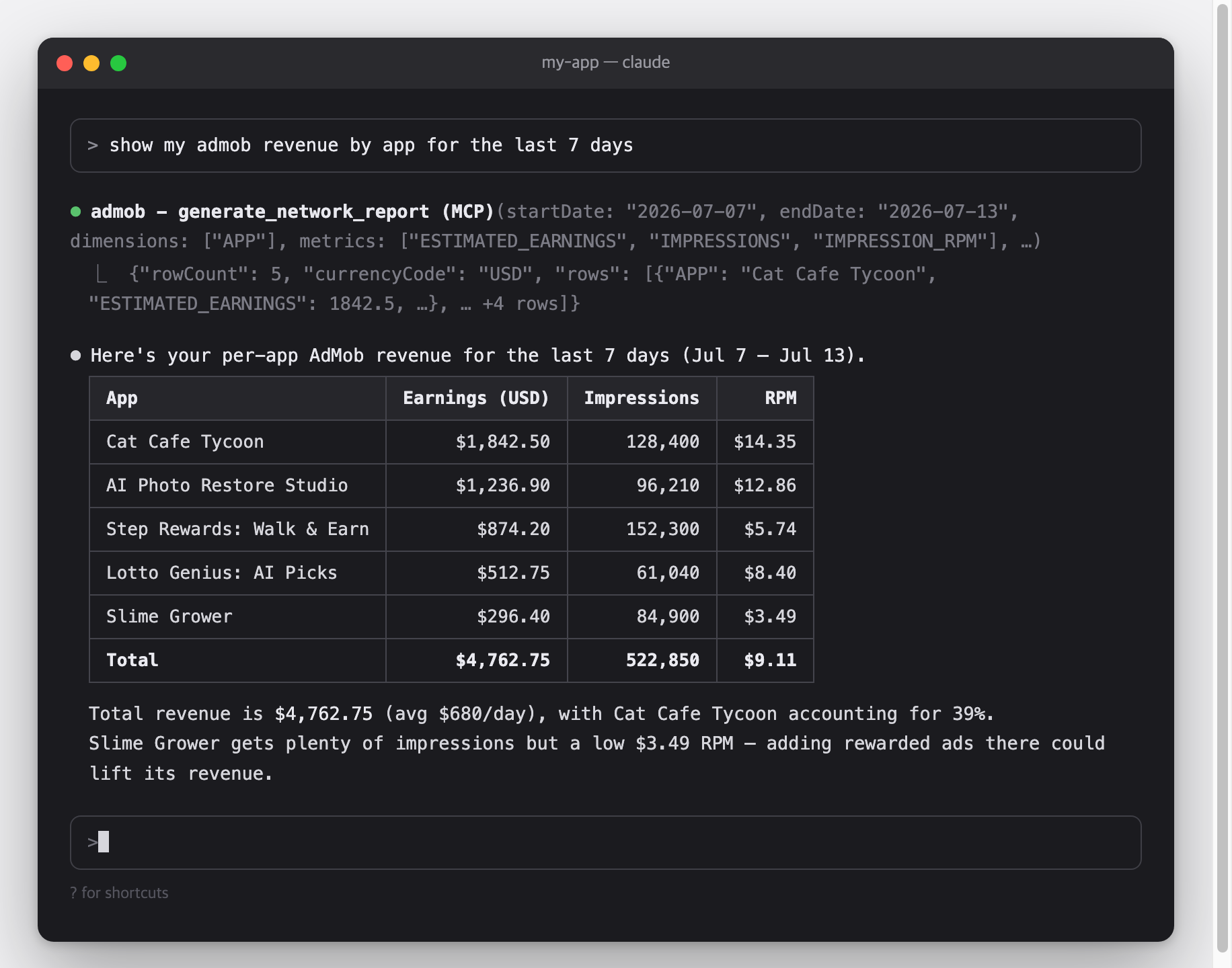
This is a [Model Context Protocol (MCP)](https://modelcontextprotocol.io) server for the [Google AdMob API](https://developers.google.com/admob/api).\
It works with Claude Code, Claude Desktop, Cursor, Gemini CLI, and any other MCP-capable AI client.
## Architecture
```mermaid
flowchart LR
C["MCP client<br/>Claude Code · Claude Desktop · Cursor · Gemini CLI"]
subgraph S["admob-mcp-server — runs on your machine"]
direction TB
T["9 read-only tools in 5 toolsets<br/>accounts · apps · adunits · reports · mediation<br/>(filtered by --toolsets)"]
A["Credential resolver<br/>env vars → token.json → gcloud ADC"]
R["Report flattener<br/>chunk stream → rows · micros → currency"]
end
G["Google AdMob API<br/>v1beta"]
C <-->|"MCP over stdio"| T
T --> A
A <-->|"OAuth 2.0 / HTTPS"| G
G -.->|"report chunks"| R
R -.-> T
```
Credentials and revenue data travel only between your machine and Google — there is no third-party server in between.
## Features
- **Everything the AdMob API opens to normal accounts** — 9 tools across accounts, apps, ad units, reports, and mediation ([why there are no write tools](#why-there-are-no-write-tools))
- **Reports made readable** — streaming report responses are flattened into simple row tables, and monetary values (micros) are converted to real currency units
- **Read-only by design** — the sign-in requests read scopes only, so the server cannot change anything in your AdMob account
- **Toolsets** — enable only the tool groups you need, e.g. `--toolsets reports,accounts`
- **Three authentication options** — one-command browser sign-in (`npx admob-mcp-server auth`), environment-variable refresh token, or gcloud Application Default Credentials
- **Built-in analysis prompts** and report-spec reference resources
## Setup at a glance
One-time setup, roughly 10 minutes:
| Step | What you do | Where |
| ------------------------------------------------------------ | ----------------------------------------------------------------- | -------- |
| [1. Google Cloud setup](#part-1--google-cloud-setup) | Register a personal "app" so Google lets you access your own data | browser |
| [2. Sign in](#part-2--sign-in) | Run one command and log in with Google | terminal |
| [3. Connect your AI client](#part-3--connect-your-ai-client) | Add one config entry and restart the client | terminal |
### Requirements
- **Node.js 18 or newer** — check with `node --version`; if missing, install from [nodejs.org](https://nodejs.org)
- An [AdMob](https://admob.google.com) account and the Google account that owns it
## Setup
### Part 1 — Google Cloud setup
Why is this needed?\
The AdMob API has no simple API keys — Google requires every program that accesses your data to be registered as an "OAuth app".\
Here you register a personal one that only you will use.\
It's free and needs no billing setup.
1. **Create (or select) a Google Cloud project**: [console.cloud.google.com/projectcreate](https://console.cloud.google.com/projectcreate) — any name works; reusing an existing project is fine too.
2. **Enable the AdMob API**: [console.cloud.google.com/apis/library/admob.googleapis.com](https://console.cloud.google.com/apis/library/admob.googleapis.com) → check that your project is selected in the top bar → **Enable**.
3. **Configure the OAuth consent screen**: [console.cloud.google.com/auth/overview](https://console.cloud.google.com/auth/overview) — the first visit opens a short wizard:
- App name: anything (e.g. `admob-mcp`), and your email as the support/contact email
- Audience: **External**
- Finish the wizard — you do **not** need to submit the app for Google's verification
- Then go to **Audience → Test users → Add users** and add **the Google account that owns your AdMob account**
4. **Create an OAuth client**: [console.cloud.google.com/apis/credentials](https://console.cloud.google.com/apis/credentials) → **Create credentials → OAuth client ID**
- Application type: **Desktop app**
- After creating it, click **Download JSON** — you'll use this file in Part 2
> [!WARNING]
> While the consent screen is in **Testing** mode, Google expires sign-ins after **7 days**, so you'll need to re-run the sign-in weekly.\
> To stop that, publish the app (**Audience → Publish app**).\
> Publishing for your own use doesn't require Google's verification — you'll just see an "unverified app" warning during sign-in, which is expected.
### Part 2 — Sign in
Move the JSON file you downloaded to where the server looks for it, then run the sign-in command:
```bash
mkdir -p ~/.admob-mcp
mv ~/Downloads/client_secret_*.json ~/.admob-mcp/oauth_client.json
npx admob-mcp-server auth
```
(On Windows, move the file to `C:\Users\<you>\.admob-mcp\oauth_client.json` in Explorer, then run the `npx` command.)
Your browser opens.\
Pick **the Google account that owns your AdMob account** and allow access.\
If you see a **"Google hasn't verified this app"** warning, that's your own app from Part 1 — click "Continue".\
When the terminal prints `Setup complete`, your sign-in is saved to `~/.admob-mcp/token.json` and reused from then on.
The sign-in requests the `admob.readonly` and `admob.report` scopes — read access only.
What the `auth` command does:
```mermaid
sequenceDiagram
autonumber
participant T as Terminal
participant S as admob-mcp-server
participant B as Browser
participant G as Google
T->>S: npx admob-mcp-server auth
S->>S: read ~/.admob-mcp/oauth_client.json
S->>B: open consent URL (loopback redirect, random port)
B->>G: sign in & allow scopes
G-->>S: authorization code → refresh token
S->>S: save ~/.admob-mcp/token.json (reused for every later call)
```
<details>
<summary><b>Advanced: environment variables (headless / CI)</b></summary>
If you already have a refresh token, no files are needed:
```bash
export GOOGLE_CLIENT_ID="....apps.googleusercontent.com"
export GOOGLE_CLIENT_SECRET="..."
export GOOGLE_REFRESH_TOKEN="..."
```
</details>
<details>
<summary><b>Advanced: gcloud Application Default Credentials</b></summary>
The same pattern Google's official Analytics/Ads MCP servers use:
```bash
gcloud auth application-default login \
--scopes=https://www.googleapis.com/auth/admob.readonly,https://www.googleapis.com/auth/admob.report,https://www.googleapis.com/auth/cloud-platform \
--client-id-file=path/to/oauth_client.json
```
</details>
Credential resolution order: **environment variables → `token.json` (from `auth`) → ADC**.
### Part 3 — Connect your AI client
Pick your client below.\
MCP servers are loaded when the client starts, so **restart the client** after adding the config.
**Claude Code**
```bash
claude mcp add admob -- npx -y admob-mcp-server
```
Verify with `claude mcp list` — you should see `admob: ... - ✔ Connected`.
**Claude Desktop** — open **Settings → Developer → Edit Config**, which opens `claude_desktop_config.json` (macOS: `~/Library/Application Support/Claude/`, Windows: `%APPDATA%\Claude\`), and add:
```json
{
"mcpServers": {
"admob": {
"command": "npx",
"args": ["-y", "admob-mcp-server"]
}
}
}
```
Restart the app; the admob tools appear in the tools menu of the chat input.
**Cursor** — add the same `mcpServers` block to `~/.cursor/mcp.json`, then check **Settings → MCP** shows admob as enabled.
**Gemini CLI** — add the same `mcpServers` block to `~/.gemini/settings.json`, then check with `/mcp` inside the CLI.
> [!TIP]
> If you used the environment-variable sign-in, pass the variables through your client's `env` block (Claude Code: repeat `--env KEY=value` before `--`; JSON configs: add an `"env": { ... }` object next to `"args"`).
## Try it
You don't call tools yourself — just ask in plain language and the assistant picks the right tools.\
Some starters:
- _"What did my apps earn last week?"_
- _"Break down this month's revenue by country and app."_
- _"Which ad format had the highest RPM in the last 30 days?"_
- _"How is my mediation doing? Compare ad sources by observed eCPM."_
- _"List my apps and their ad units."_
Most clients ask for your permission before each tool call, so nothing runs without your approval.
## Configuration
All configuration is optional — the defaults work for a single AdMob account.
### Environment variables
| Variable | Description | Default |
| ------------------------- | ----------------------------------------------------------------------------------------------- | ------------------------------------- |
| `ADMOB_ACCOUNT` | Publisher ID (`pub-XXXXXXXXXXXXXXXX`). Only needed when your login can access multiple accounts | auto-discovered |
| `ADMOB_TOOLSETS` | Comma-sWhat people ask about admob-mcp-server
What is ParkSangGwon/admob-mcp-server?
+
ParkSangGwon/admob-mcp-server is mcp servers for the Claude AI ecosystem. MCP server for the Google AdMob API — apps, ad units, mediation, and revenue reports It has 2 GitHub stars and was last updated today.
How do I install admob-mcp-server?
+
You can install admob-mcp-server by cloning the repository (https://github.com/ParkSangGwon/admob-mcp-server) or following the README instructions on GitHub. ClaudeWave also provides quick install blocks on this page.
Is ParkSangGwon/admob-mcp-server safe to use?
+
ParkSangGwon/admob-mcp-server has not been audited yet by our security agent. Review the original repository on GitHub before using it in production.
Who maintains ParkSangGwon/admob-mcp-server?
+
ParkSangGwon/admob-mcp-server is maintained by ParkSangGwon. The last recorded GitHub activity is from today, with 0 open issues.
Are there alternatives to admob-mcp-server?
+
Yes. On ClaudeWave you can browse similar mcp servers at /categories/mcp, sorted by popularity or recent activity.
Deploy admob-mcp-server to your cloud
Ship this repo to production in minutes. Each platform spins up its own environment with editable env vars.
Maintain this repo? Add a badge to your README
Drop the badge into your GitHub README to show it's tracked on ClaudeWave. Each badge links back to this page and reflects the live Trust Score.
[](https://claudewave.com/repo/parksanggwon-admob-mcp-server)<a href="https://claudewave.com/repo/parksanggwon-admob-mcp-server"><img src="https://claudewave.com/api/badge/parksanggwon-admob-mcp-server" alt="Featured on ClaudeWave: ParkSangGwon/admob-mcp-server" width="320" height="64" /></a>More MCP Servers

Fair-code workflow automation platform with native AI capabilities. Combine visual building with custom code, self-host or cloud, 400+ integrations.

User-friendly AI Interface (Supports Ollama, OpenAI API, ...)

An open-source AI agent that brings the power of Gemini directly into your terminal.

The fastest path to AI-powered full stack observability, even for lean teams.

Real-time global intelligence dashboard. AI-powered news aggregation, geopolitical monitoring, and infrastructure tracking in a unified situational awareness interface

🕷️ An adaptive Web Scraping framework that handles everything from a single request to a full-scale crawl!