

Which days and times am I free? Reads your calendar feeds (Google, Outlook, iCloud) and a pasted message, and prints the slots you can offer. No account, no API key, standard library only.
- ✓Open-source license (Apache-2.0)
- ✓Actively maintained (<30d)
- ✓Clear description
- ✓Topics declared
- ✓Documented (README)
claude mcp add when-free -- uvx when-free{
"mcpServers": {
"when-free": {
"command": "uvx",
"args": ["when-free"]
}
}
}MCP Servers overview
# when-free
**Someone asks when you're free. This reads your calendar and gives you the answer, ready to paste.**
[](https://github.com/YauhenBichel/when-free/actions/workflows/tests.yml)
[](https://pypi.org/project/when-free/)
[](https://github.com/YauhenBichel/when-free/blob/main/LICENSE)
<!-- mcp-name: io.github.YauhenBichel/when-free -->
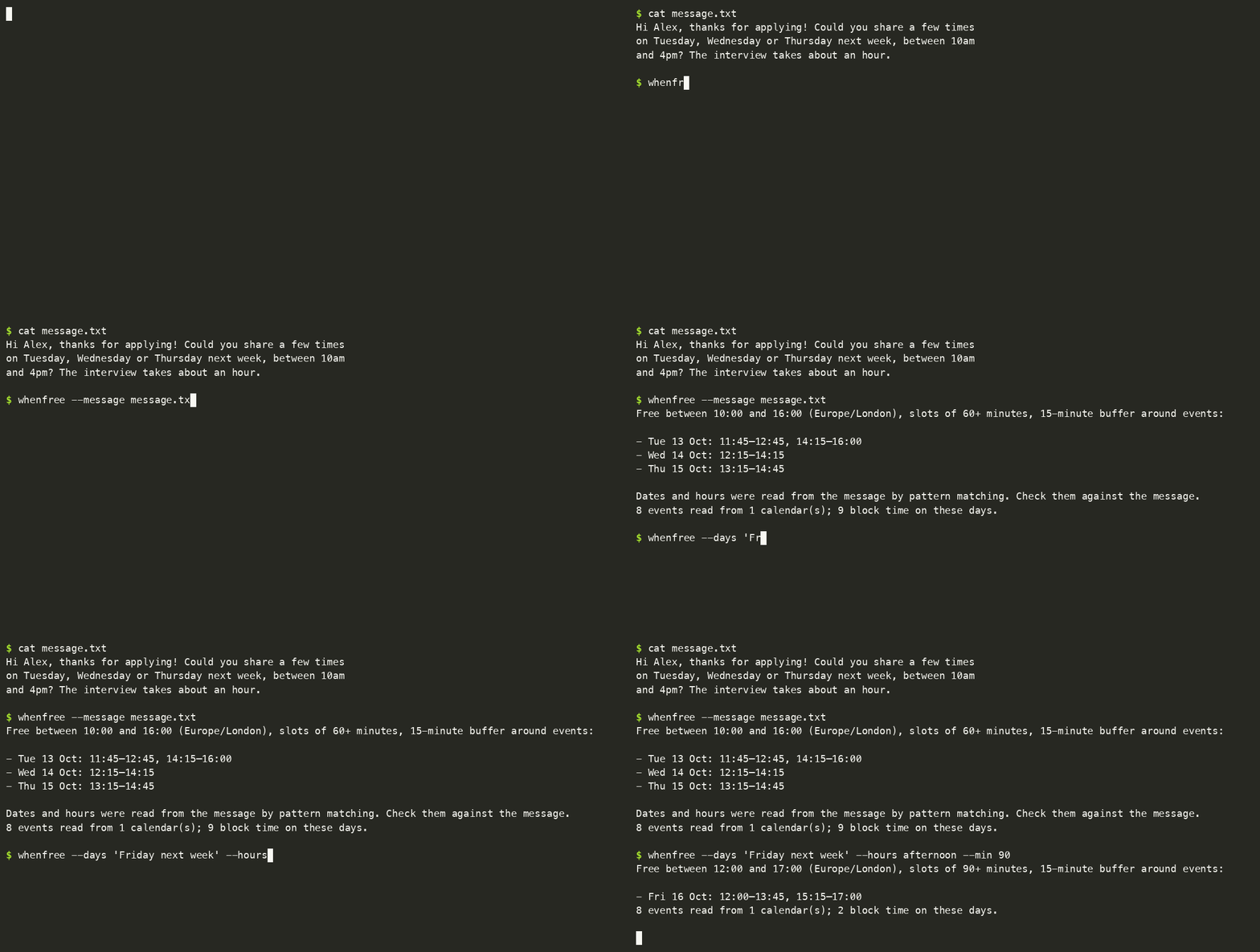
- **Paste the message, get the slots.** It reads "Tuesday or Wednesday next week, between 10am and 4pm" and answers for exactly those days and hours.
- **Works with Google, Outlook and iCloud** calendars, or any `.ics` file. Several calendars at once.
- **Private.** It runs on your computer, needs no account and no API key, and never changes your calendar.
- **Works from your AI tools too:** Claude, Cursor and other MCP clients, Open WebUI, n8n, Shortcuts, scripts.
- **And on your other devices:** phones, tablets and watches, Home Assistant (and Alexa, Google Home, Siri through it), and the menu bar or status bar of macOS, Linux and Windows.
## Contents
[Try it](#try-it-in-a-minute) · [Add your calendar](#add-your-calendar) · [Everyday use](#everyday-use) · [Reading a message](#reading-a-message) · [Use it from other tools](#use-it-from-other-tools) · [Other devices](#on-your-other-devices) · [Privacy](#privacy) · [Settings](#settings) · [What counts as busy](#what-counts-as-busy) · [Limits](#limits) · [Problems](#if-something-does-not-work)
## Try it in a minute
With [uv](https://docs.astral.sh/uv/), nothing to install first:
```bash
uvx when-free demo
```
To keep it (needs Python 3.11 or newer):
```bash
uv tool install when-free # or: pipx install when-free
whenfree demo
```
Using Claude Desktop? You can skip all of this: install the [one-click extension](https://github.com/YauhenBichel/when-free/blob/main/docs/recipes.md#claude-desktop-in-one-click).
`whenfree demo` makes up a calendar for next week and answers a recruiter's message from it. It reads none of your data and saves nothing:
```text
> Hi! Thanks for applying. Could you share a few times on Tuesday, Wednesday or Thursday next week,
> between 10am and 4pm? The interview takes about an hour.
Free between 10:00 and 16:00 (Europe/London), slots of 60+ minutes, 15-minute buffer around events:
- Tue 13 Oct: 11:45–12:45, 14:15–16:00
- Wed 14 Oct: 12:15–14:15
- Thu 15 Oct: 13:15–14:45
```
## Add your calendar
1. **Copy your calendar's private address.** It's a link that ends in `.ics`:
| Calendar | Where to find it |
|---|---|
| Google Calendar | [Settings](https://calendar.google.com/calendar/u/0/r/settings) → click your calendar on the left → *Integrate calendar* → **Secret address in iCal format** |
| Outlook | Settings → Calendar → Shared calendars → *Publish a calendar* → the **ICS** link |
| iCloud | Calendar → the share icon next to the calendar → *Public Calendar* (a `webcal://` link is fine) |
| Anything else | Any `.ics` link, or an exported `.ics` file |
2. **Run `whenfree add` and paste it.** The address isn't shown while you paste. It's checked first, and saved only if it works:
```console
$ whenfree add
Paste the address and press Enter (it is not shown):
Added 'personal': 412 events, 9 block time in the next 14 days.
Saved in /Users/you/.config/when-free/config.toml, readable only by you. Now run: whenfree
```
3. **Run `whenfree`.** You'll see your free time for the next working days.
On a Mac, `pbpaste | whenfree add` takes the address straight from the clipboard.
> **Keep the address secret.** It works like a password: anyone who has it can read that calendar. Give it to `whenfree add` and to nothing else, so not to a chat, a shell command or a repository. If it leaks, reset it in your calendar's settings.
<details>
<summary><b>Google Calendar, step by step</b></summary>
Do this in a browser, because the phone app doesn't show the address.
1. Open [Google Calendar settings](https://calendar.google.com/calendar/u/0/r/settings): the gear icon, then **Settings**.
2. In the left column, under **Settings for my calendars**, click the calendar you want. The one with your own name is where invitations arrive.
3. Scroll down to **Integrate calendar** and copy **Secret address in iCal format**. It ends in `basic.ics`. Don't take "Public address in iCal format", which only works for a calendar you've made public.
4. Run `whenfree add` and paste it when asked.
No "Secret address"? Work and school accounts can have it switched off. Export the calendar instead (Settings → Import & export → Export), unzip it, and run `whenfree add ~/calendars/work.ics`. An export is a snapshot, so export again when your calendar changes.
</details>
<details>
<summary><b>More than one calendar</b></summary>
A slot counts as free only if it's free in every calendar you add.
```bash
whenfree add --name work # a second calendar: asks for its address
whenfree add ~/calendars/family.ics # an exported file instead of an address
whenfree check # can every calendar be read?
```
They're kept in `~/.config/when-free/config.toml`, one `[[calendar]]` block each, with a `name` and a `url` or `path`. You can edit that file by hand. `whenfree init` creates an empty one.
</details>
## Everyday use
| You want | Run |
|---|---|
| Your free time over the next working days | `whenfree` |
| The days and hours a message asks about | `pbpaste \| whenfree --message -` (Mac clipboard) or `whenfree --message invite.txt` |
| Next week's afternoons | `whenfree --days "next week" --hours afternoon` |
| Specific days | `whenfree --days "Thu 15 Oct, Fri 16 Oct"` |
| A date range | `whenfree --from 2026-10-12 --to 2026-10-16` |
| Only slots long enough for a 90-minute meeting | `whenfree --min 90` |
| To see what blocks each day | `whenfree --busy` |
| The answer in another time zone | `whenfree --tz America/New_York` |
| JSON for a script | `whenfree --format json` |
| To copy the answer | `whenfree ... \| pbcopy` (only the slot lines are copied) |
Only the slot lines go to standard output. The context goes to standard error, so `| pbcopy` copies exactly what you'd paste into a reply.
## Reading a message
`--message` finds the days and hours in ordinary text. It understands:
- **Dates** written in any common way: `Thu 1 Oct` · `Thursday the 1st of October` · `Monday, October 5th` · `5 October` · `2026-10-05` · `Wednesday 30th`
- **Hours:** `between 10:00am and 4:00pm` · `10:00–16:00` · `9-5pm` · `2 to 4 pm`
- **Words, when there's no date** (here, today is Thursday 1 Oct):
| Written | Read as |
|---|---|
| `today` · `tomorrow` · `the day after tomorrow` | Thu 1 · Fri 2 · Sat 3 Oct |
| `Thursday or Friday` | the coming ones, today included: Thu 1, Fri 2 Oct |
| `this Tuesday` · `next Tuesday` | Tuesday of this week (already past, so left out and named) · Tuesday of next week, Tue 6 Oct |
| `next week` · `this week` · `the week after next` | that week's working days, from today on |
| `Tuesday or Wednesday next week` | Tue 6, Wed 7 Oct |
| `any afternoon` · `Friday morning` · `evening` | 12:00–17:00 · 09:00–12:00 · 17:00–20:00, unless hours are given |
It always tells you how it read the dates, so you can check them against the message. A few rules keep it from guessing:
- **Explicit dates win.** A heading like "Next week:" above "Wednesday 30th, Thursday 1st" doesn't add a whole week.
- **"Good morning" is a greeting**, not a time.
- **Days already past are left out** and named, never dropped silently. "Wednesday 30th" means the nearest Wednesday that's a 30th, so a message from last week reads as last week.
- **Words count from today.** For an older message that says "tomorrow", give the days yourself with `--days`.
when-free never connects to your mailbox. You paste the message, pipe it in, or save it to a file.
<details>
<summary><b>Let your own language model read the message</b></summary>
If you run a model yourself, it can do the reading instead. Add this to the settings file:
```toml
[extract]
command = ["ollama", "run", "llama3.2"] # the prompt is sent on standard input
# command = ["my-cli", "ask", "{prompt}"] # or placed where {prompt} is
```
The command receives the message and must print JSON: `{"days": ["2026-10-05"], "hours": "10:00-16:00", "minutes": 60}`. If it fails, pattern matching is used instead. Nothing runs unless you configure it, and `--no-extract` skips it for one run. The message goes to whatever that command talks to, so use a local model for private text.
</details>
## Use it from other tools
Every way gives the same answer, only reads, and leaves event titles out unless asked.
| Your tool | Use | Set up |
|---|---|---|
| Claude Desktop | [One-click extension](https://github.com/YauhenBichel/when-free/blob/main/docs/recipes.md#claude-desktop-in-one-click) | double-click |
| Claude Code, with a skill that knows when to use it | [Plugin](#claude-code-plugin) | two commands |
| Claude Code, Cursor, VS Code, any MCP client | [MCP server](#mcp-claude-cursor-and-other-assistants) | one line |
| Raycast, a right-click on a message (macOS) | [Recipes](https://github.com/YauhenBichel/when-free/blob/main/docs/recipes.md) | a few minutes |
| Open WebUI, n8n, Shortcuts, Raycast, anything that calls a URL | [Local HTTP server](#http-open-webui-n8n-shortcuts-and-scripts) | `whenfree serve` |
| Your own agent with function calling | [Schema and call](#function-calling-harnesses) | two commands |
| Python | [The library](#python) | `import whenfree` |
### Claude Code plugin
The plugin bundles the MCP server with a skWhat people ask about when-free
What is YauhenBichel/when-free?
+
YauhenBichel/when-free is mcp servers for the Claude AI ecosystem. Which days and times am I free? Reads your calendar feeds (Google, Outlook, iCloud) and a pasted message, and prints the slots you can offer. No account, no API key, standard library only. It has 0 GitHub stars and its last recorded update is dated 2026-10-08.
How do I install when-free?
+
You can install when-free by cloning the repository (https://github.com/YauhenBichel/when-free) or following the README instructions on GitHub. ClaudeWave also provides quick install blocks on this page.
Is YauhenBichel/when-free safe to use?
+
Our security agent has analyzed YauhenBichel/when-free and assigned a Trust Score of 95/100 (tier: Verified). See the full breakdown of passed checks and flags on this page.
Who maintains YauhenBichel/when-free?
+
YauhenBichel/when-free is maintained by YauhenBichel. The last recorded GitHub activity is dated 2026-10-08, with 1 open issues.
Are there alternatives to when-free?
+
Yes. On ClaudeWave you can browse similar mcp servers at /categories/mcp, sorted by popularity or recent activity.
Deploy when-free to your cloud
Ship this repo to production in minutes. Each platform spins up its own environment with editable env vars.
Maintain this repo? Add a badge to your README
Drop the badge into your GitHub README to show it's tracked on ClaudeWave. Each badge links back to this page and reflects the live Trust Score.
[](https://claudewave.com/repo/yauhenbichel-when-free)<a href="https://claudewave.com/repo/yauhenbichel-when-free"><img src="https://claudewave.com/api/badge/yauhenbichel-when-free" alt="Featured on ClaudeWave: YauhenBichel/when-free" width="320" height="64" /></a>More MCP Servers

Fair-code workflow automation platform with native AI capabilities. Combine visual building with custom code, self-host or cloud, 400+ integrations.

User-friendly AI Interface (Supports Ollama, OpenAI API, ...)

An open-source AI agent that brings the power of Gemini directly into your terminal.

Real-time global intelligence dashboard. AI-powered news aggregation, geopolitical monitoring, and infrastructure tracking in a unified situational awareness interface

🕷️ An adaptive Web Scraping framework that handles everything from a single request to a full-scale crawl! Don't be shy, join here: https://discord.gg/EMgGbDceNQ and follow here for daily tips and tricks: https://x.com/Scrapling_dev

The fastest path to AI-powered full stack observability, even for lean teams.