

Save chat notes from Claude Desktop to your vault — MCP on Obsidian CLI. Keep what matters.
- ✓Open-source license (MIT)
- ✓Actively maintained (<30d)
- ✓Clear description
- ✓Topics declared
- ✓Documented (README)
claude mcp add mcp-obsidian-cli -- npx -y mcp-obsidian-cli{
"mcpServers": {
"mcp-obsidian-cli": {
"command": "npx",
"args": ["-y", "mcp-obsidian-cli"]
}
}
}MCP Servers overview
# mcp-obsidian-cli
[](https://help.obsidian.md/cli)
[](https://www.npmjs.com/package/mcp-obsidian-cli)
[](https://www.npmjs.com/package/mcp-obsidian-cli)
[](https://registry.modelcontextprotocol.io/v0/servers?search=stonematt%2Fmcp-obsidian-cli)
[](https://nodejs.org)
[](https://opensource.org/licenses/MIT)
Your thinking starts in Claude Desktop, not in Obsidian. You research, draft, argue with the model, and when something's worth keeping you say "save this to my vault." It lands in the right place: your template, your properties, today's daily note, wired into your link graph. No tab-switch, no copy-paste.
**Installing this?** Start at [Install](#install). One prompt in Claude Code handles the whole setup.
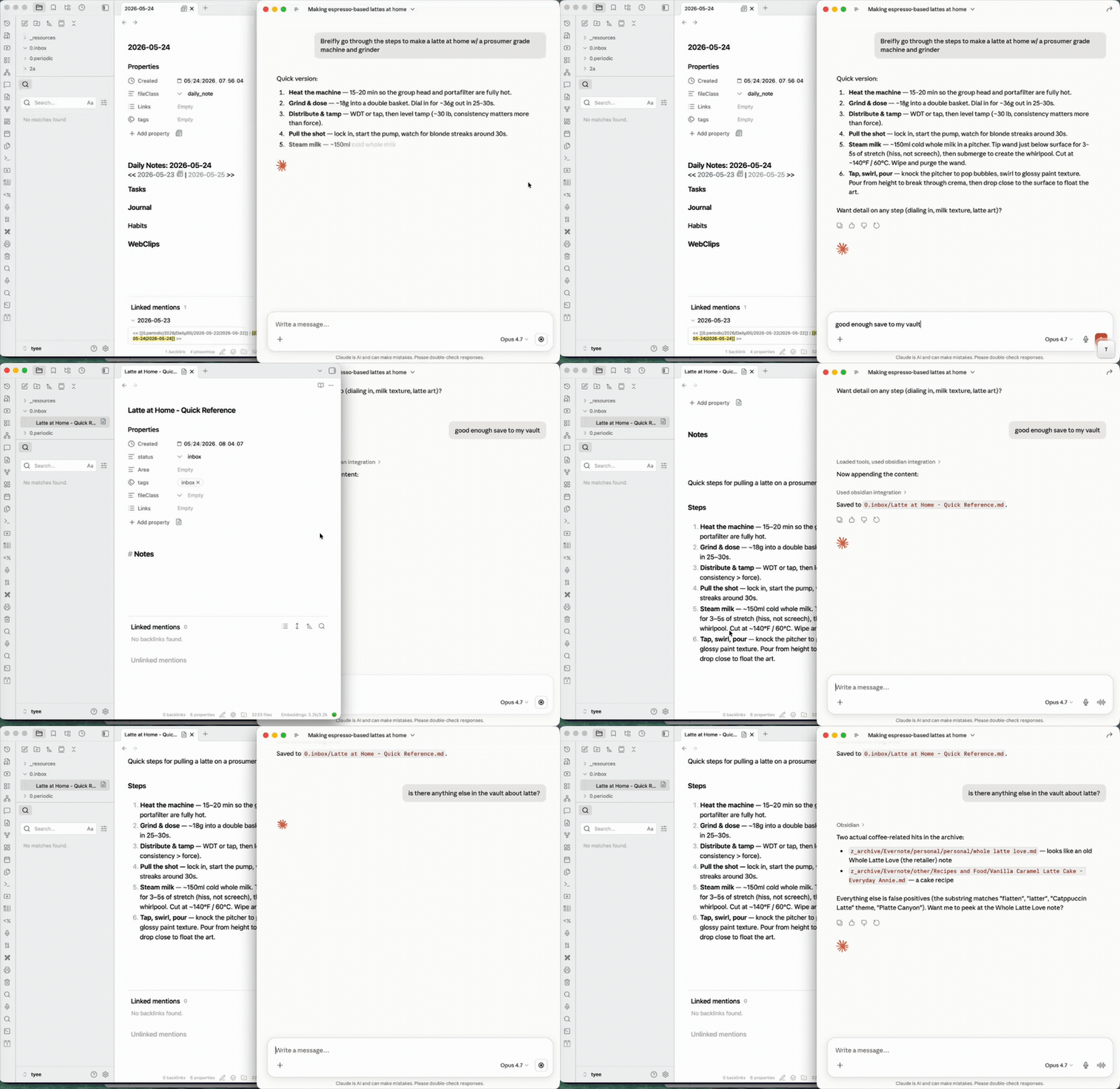
Two halves:
- **Capture** — turn a conversation into a real note, filed where it belongs.
- **Augment** — pull what's already in the vault (backlinks, full-text search) back into the chat to inform or update a note.
Needs Obsidian running. It can sit minimized, so you never switch to it.
Using this from Claude Code? The native `obsidian-cli` skill fits better there: direct CLI, no MCP layer. Installing is separate. The prompt below runs in Claude Code.
## Install
Run the prompt below in Claude Code. It checks Node, enables the Obsidian CLI, writes your Claude Desktop config, and verifies the connection. Only hand-edit the config if that path fails.
```text
Fetch https://raw.githubusercontent.com/stonematt/mcp-obsidian-cli/master/docs/INSTALL.md
and follow it end to end to install the mcp-obsidian-cli MCP server for my Claude Desktop.
Ask me for my Obsidian vault name and folder path, then handle everything else — check Node,
enable the Obsidian CLI, edit my Claude Desktop config, and verify it works.
```
Full walkthrough, including failure modes: **[docs/INSTALL.md](https://github.com/stonematt/mcp-obsidian-cli/blob/master/docs/INSTALL.md)**.
**Run the server directly.** This starts the server in your terminal and installs nothing:
```bash
npx mcp-obsidian-cli
```
## Requirements
The install prompt checks each of these. Listed here for reference:
- Obsidian running with its command line interface enabled (Settings → General → Advanced → **Command line interface**). The CLI ships built into Obsidian — nothing extra to install.
- `obsidian-cli` reachable. macOS auto-detects it inside the Obsidian app bundle, so there is nothing to configure. Linux and Windows have no auto-detection: point `OBSIDIAN_CLI_PATH` at the binary yourself.
- Node.js >= 18
## How it works
The server exposes Obsidian CLI commands as MCP tools. A generic pass-through tool handles the full CLI surface (80+ commands), plus typed convenience tools for common operations:
| Tool | Description |
|------|-------------|
| `obsidian` | Generic pass-through — run any CLI command (ships intent→verb cheatsheet, pre-call manifest validation, reload detection) |
| `obsidian_help` | Manifest-backed help — list verbs by category, or look up a single verb / doc topic |
| `obsidian_daily_read` | Read today's daily note |
| `obsidian_daily_append` | Append to daily note |
| `obsidian_read` | Read a note by name or path |
| `obsidian_search` | Full-text search with context |
| `obsidian_tags` | List tags with counts |
| `obsidian_tasks` | Query tasks (daily, todo, done) |
| `obsidian_properties` | Read frontmatter properties |
| `obsidian_create` | Create a new plain note (no Templater expansion) |
| `obsidian_create_from_template` | Create a note from a Templater template (expands `<% ... %>` placeholders) |
| `obsidian_property_set` | Set a frontmatter property |
| `obsidian_backlinks` | List backlinks to a note |
| `obsidian_files` | List vault files |
| `obsidian_recents` | Recently opened files |
The generic `obsidian` tool means the MCP server never falls behind the CLI — new CLI commands work immediately without a server update.
## What it can do
It talks to the running Obsidian instance, so it works with your vault the way Obsidian sees it:
- **Backlinks and full-text search** across your resolved link graph and search index (the augment half).
- **Templater templates** and typed **frontmatter properties** when creating or updating notes.
- **Daily notes**, task queries, and tag counts.
- **80+ commands** through the generic pass-through. No API keys, no REST plugin. Just the official Obsidian CLI.
<details>
<summary><strong>Manual config (if you're not using Claude Code)</strong></summary>
Automated installers should use the prompt under [Install](#install), which handles vault name, CLI path, and verification. This block is the hand-edit fallback.
Add to `~/Library/Application Support/Claude/claude_desktop_config.json`:
```json
{
"mcpServers": {
"obsidian": {
"command": "npx",
"args": ["-y", "mcp-obsidian-cli"],
"env": {
"OBSIDIAN_VAULT": "my-vault"
}
}
}
}
```
</details>
## Environment variables
| Variable | Default | Description |
|---|---|---|
| `OBSIDIAN_VAULT` | _(none)_ | Target vault by name |
| `OBSIDIAN_CLI_PATH` | `obsidian-cli` | Path to CLI binary |
| `OBSIDIAN_TIMEOUT_MS` | `15000` | Command timeout |
| `XDG_CONFIG_HOME` | `~/.config` | Base path for config file |
## Config file
The server can read settings from a YAML config file:
- Default: `~/.config/mcp-obsidian-cli/config.yaml`
- With `XDG_CONFIG_HOME`: `$XDG_CONFIG_HOME/mcp-obsidian-cli/config.yaml`
Config file format:
```yaml
vault: "my-vault"
cliPath: "obsidian-cli"
timeoutMs: 15000
```
Config precedence: env vars > config file > hardcoded defaults
## Bugs / requests
File an issue: https://github.com/stonematt/mcp-obsidian-cli/issues/new/choose. Bug template asks for version, MCP client, tool call, and response — quick to fill, fast to act on.
## License
MIT
[](https://ko-fi.com/Z8Z41G13PX)
Maintained by [@stonematt](https://github.com/stonematt)
Licensed under the MIT License
**Trademark Notice:** "Obsidian" is a trademark of Obsidian Publishing, Inc. This project is not affiliated with or endorsed by Obsidian Publishing.
What people ask about mcp-obsidian-cli
What is stonematt/mcp-obsidian-cli?
+
stonematt/mcp-obsidian-cli is mcp servers for the Claude AI ecosystem. Save chat notes from Claude Desktop to your vault — MCP on Obsidian CLI. Keep what matters. It has 2 GitHub stars and its last recorded update is dated 2026-09-08.
How do I install mcp-obsidian-cli?
+
You can install mcp-obsidian-cli by cloning the repository (https://github.com/stonematt/mcp-obsidian-cli) or following the README instructions on GitHub. ClaudeWave also provides quick install blocks on this page.
Is stonematt/mcp-obsidian-cli safe to use?
+
Our security agent has analyzed stonematt/mcp-obsidian-cli and assigned a Trust Score of 95/100 (tier: Verified). See the full breakdown of passed checks and flags on this page.
Who maintains stonematt/mcp-obsidian-cli?
+
stonematt/mcp-obsidian-cli is maintained by stonematt. The last recorded GitHub activity is dated 2026-09-08, with 7 open issues.
Are there alternatives to mcp-obsidian-cli?
+
Yes. On ClaudeWave you can browse similar mcp servers at /categories/mcp, sorted by popularity or recent activity.
Deploy mcp-obsidian-cli to your cloud
Ship this repo to production in minutes. Each platform spins up its own environment with editable env vars.
Maintain this repo? Add a badge to your README
Drop the badge into your GitHub README to show it's tracked on ClaudeWave. Each badge links back to this page and reflects the live Trust Score.
[](https://claudewave.com/repo/stonematt-mcp-obsidian-cli)<a href="https://claudewave.com/repo/stonematt-mcp-obsidian-cli"><img src="https://claudewave.com/api/badge/stonematt-mcp-obsidian-cli" alt="Featured on ClaudeWave: stonematt/mcp-obsidian-cli" width="320" height="64" /></a>More MCP Servers

Fair-code workflow automation platform with native AI capabilities. Combine visual building with custom code, self-host or cloud, 400+ integrations.

User-friendly AI Interface (Supports Ollama, OpenAI API, ...)

An open-source AI agent that brings the power of Gemini directly into your terminal.

Real-time global intelligence dashboard. AI-powered news aggregation, geopolitical monitoring, and infrastructure tracking in a unified situational awareness interface

The fastest path to AI-powered full stack observability, even for lean teams.

🕷️ An adaptive Web Scraping framework that handles everything from a single request to a full-scale crawl!